AI Motion Graphics Explained: How They Work in 2026
November 7, 2026 · 11 min read
You've watched a clean AI clip online. Then you tried to make a logo move for a real job. The type warped. The timing drifted. The loop didn't loop. That gap is normal. AI motion graphics aren't magic video. They're a production process. You still plan, test, select and edit.
Table of Contents
- What AI Motion Graphics Mean in Plain Terms
- Three Ways to Start
- What's Human and What's Not
- AI Motion Graphics Compared With Traditional Work
- Model Limits That Shape Every Motion Graphic
- How to Read the Numbers
- How AI Motion Graphics Are Made Step by Step
- How to Test AI Motion Output Before You Use It
- Four Checks Before Approval
- Set Thresholds by Asset Type
- Rights, Provenance and Client Approval
- Where AI Motion Graphics Fit Real Creative Jobs
- Choose Your First AI Motion Graphic Project
What AI Motion Graphics Mean in Plain Terms
Think of a flipbook. In traditional work, a person draws each page in order. Flip the pages and the shape moves. In AI work, a model draws many pages for you. You guide it with words, a still image or a short clip.
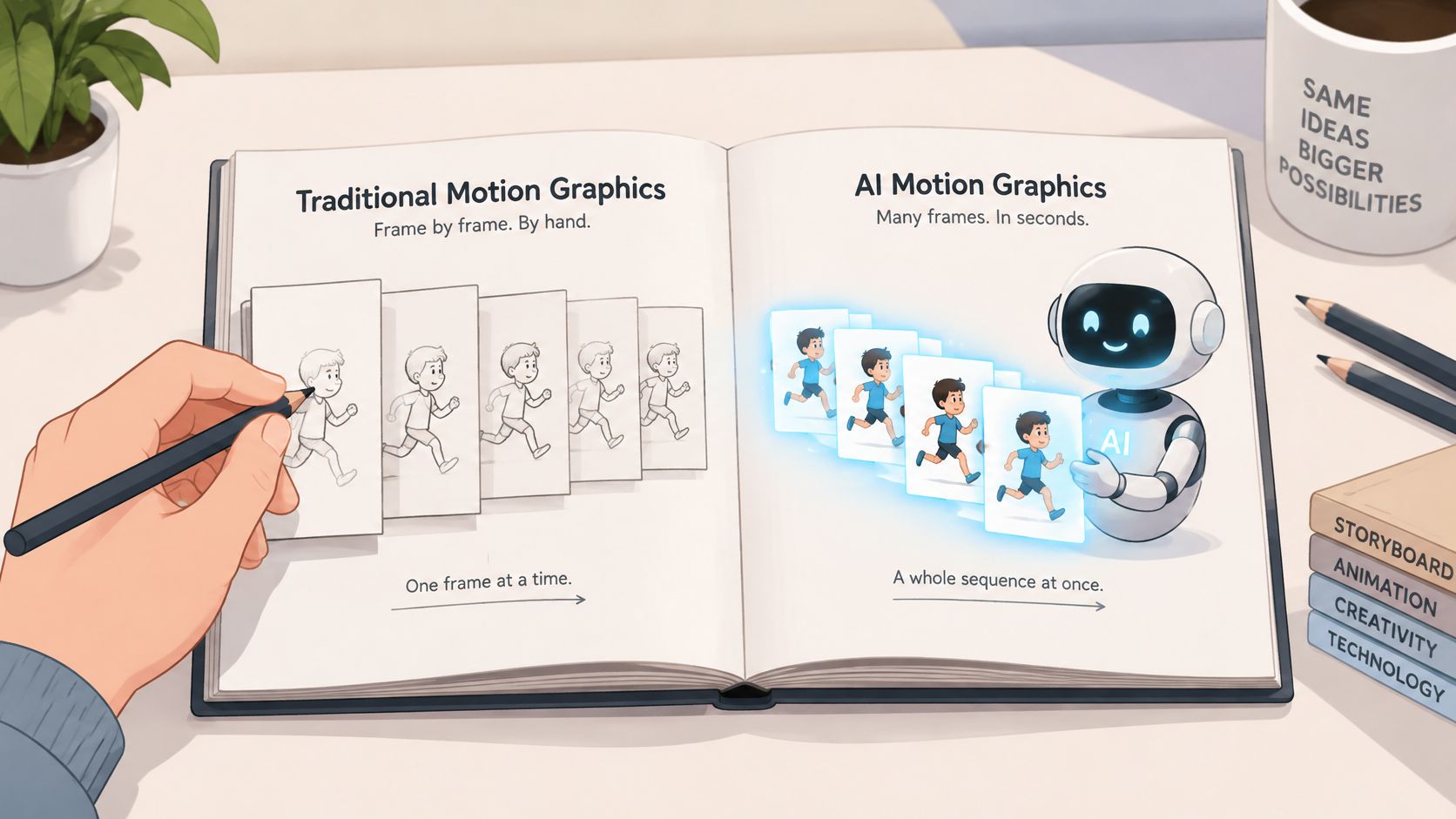
AI motion graphics are animated visual elements such as title cards, logo reveals, icons, lower thirds, transitions and background loops that are generated or assisted by generative AI models.
Three Ways to Start
- Prompt to motion: You describe the move in text. The model invents the frames.
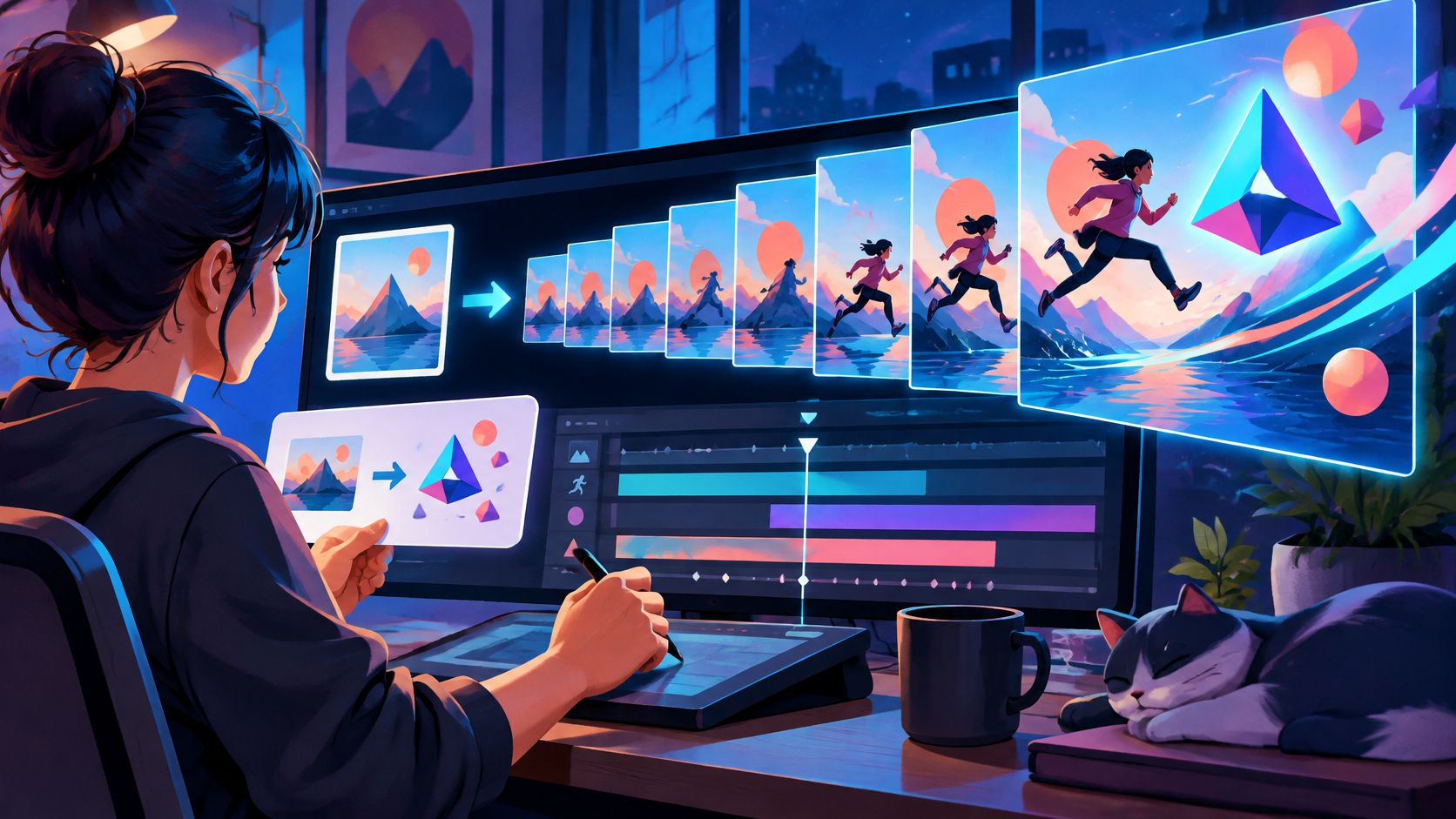
- Image to motion: You supply a still picture. The model animates that picture.
- Video to motion: You supply footage. The model restyles, extends or edits it.
Say a bakery needs a title card. You already have a clean logo still. Image to motion fits. You ask for a slow push in. You keep the logo shape fixed.
What's Human and What's Not
You write the brief. You set the timing and brand rules. You pick the usable take. You do the final edit. The model only suggests movement.
Don't confuse this with all AI video. A general clip can be loose and still work. A graphic can't. Type must stay readable. Shapes must hold. Loops must match at the seam. That's a stricter test. Now name your input route first. If your request needs stable type and a clean loop, it's a motion graphics job.
AI Motion Graphics Compared With Traditional Work
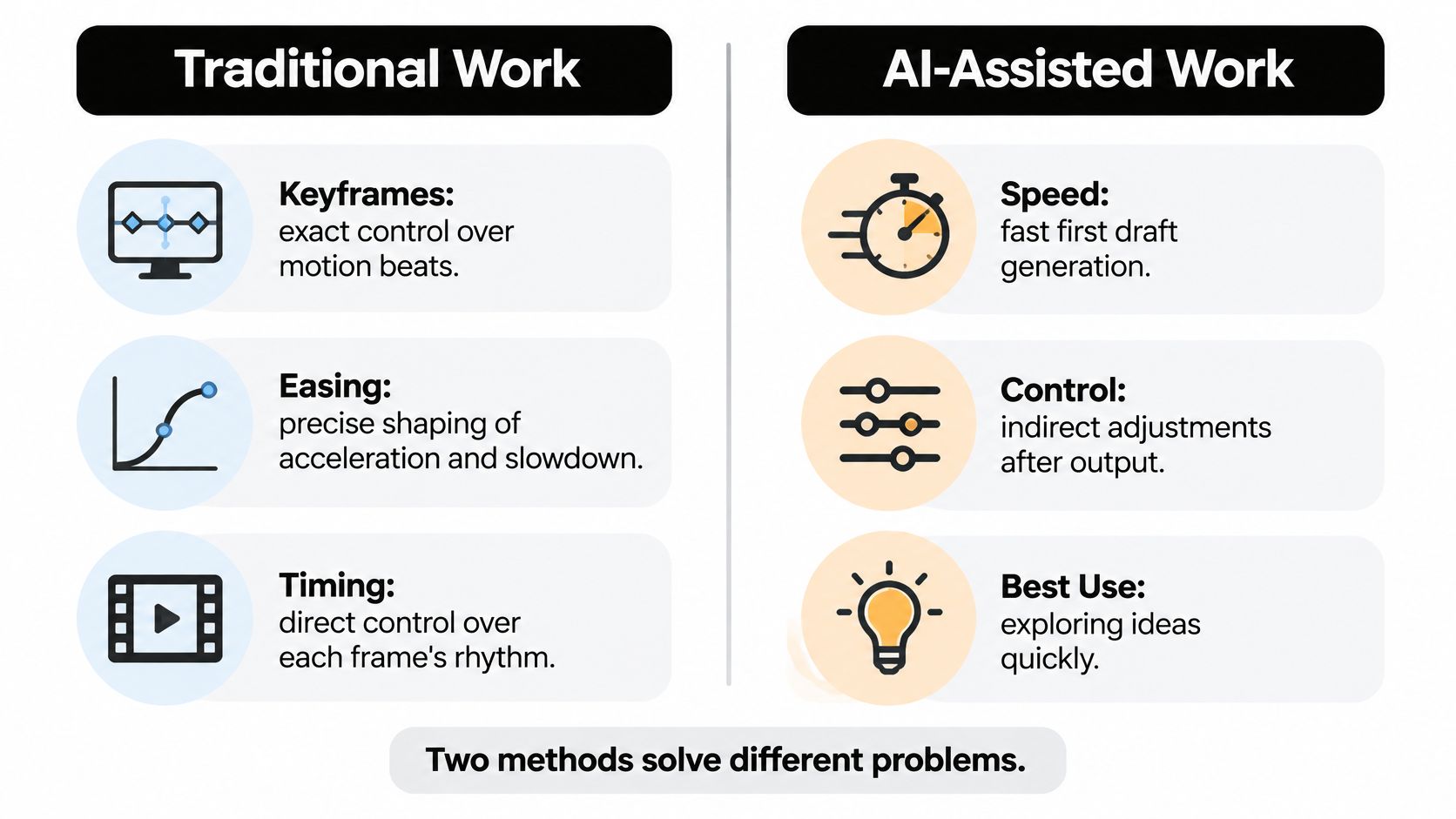
These methods solve different problems. Hand built work gives exact control. AI work gives a fast first draft. The chart below shows the split at a glance.
| Criterion | Traditional motion graphics | AI motion graphics |
|---|---|---|
| Starting point | Built from scratch in an animation editor | Generated from a prompt, still image or reference clip |
| First rough draft | Needs boards, an animatic and keyframes | Available quickly, usually after several attempts |
| Motion control | Exact keyframes, easing and timing | Indirect, steered by prompts and reference motion |
| Brand accuracy | Exact type and logo placement | Needs locked references and checks |
| Clip length | Any length the editor allows | Short clips joined during editing |
| Revision cost | Edit the keyframes directly | Often means regenerating and selecting new takes |
| Best fit | Precise interface motion, data graphics, brand systems | Animatics, backgrounds, loops, transitions, variations |
The row that surprises people is revision cost. In Adobe After Effects, you move a keyframe. The change is direct. With AI, you often rerun the clip. Then you compare takes. That can erase your early time saving.
The second surprise is motion control. You don't set each frame. You steer with words and references. The model fills the gaps. That is why easing can look odd.
The video below helps you see the practical contrast before you choose a route.
Practical rule: Use AI where speed of options matters more than exact control. Use keyframes where every frame must be exact.
Model Limits That Shape Every Motion Graphic
Current models make short clips. They don't make finished sequences. A 2025 benchmark compared systems using clips of about five seconds at 720p and a 16:9 aspect ratio. The same study reports Sora supports selectable durations of 5, 10, 15, or 20 seconds, resolutions from 480p to 1080p, and aspect ratios including 1:1, 16:9, and 9:16.
That limit shapes your whole plan. One prompt rarely gives a complete piece. You generate several shots. Then you edit and composite them. Motion transfer is one way to reuse movement, as shown in how AI motion transfer turns a photo into a dancer.
A 2025 review of published models lists the output sizes below. Read them against your delivery size first.
| Model | Resolution (pixels) | Clip length | Frames |
|---|---|---|---|
| PixVerse v4 | 640 by 640 | 5 seconds | 150 |
| Kling v1.6 | 1920 by 1080 | 5 seconds | 120 |
| Hunyuan | 720 by 1280 | 5.4 seconds | 129 |
| LTX | 1280 by 720 | 5 seconds | 120 |
How to Read the Numbers
Frame count is roughly clip length times frame rate. More frames in the same seconds means smoother playback. It doesn't mean better design.
Resolution tells you where the clip can go. 1920 by 1080 suits full screen web video. 640 by 640 suits a small social tile. Hunyuan at 720 by 1280 is vertical.
Aspect ratio matters too. Use 16:9 for YouTube and TV style delivery. Use 9:16 for vertical reels. Use 1:1 for feed posts.
If output sits below delivery size, you'll need upscaling. That step can add artefacts around type and edges. Budget time to check it.
Start with delivery format. Write down size, ratio and length. Then pick models that already match. Don't pick by style alone.
How AI Motion Graphics Are Made Step by Step
A reliable process has eight steps. Each step prevents a common slip.
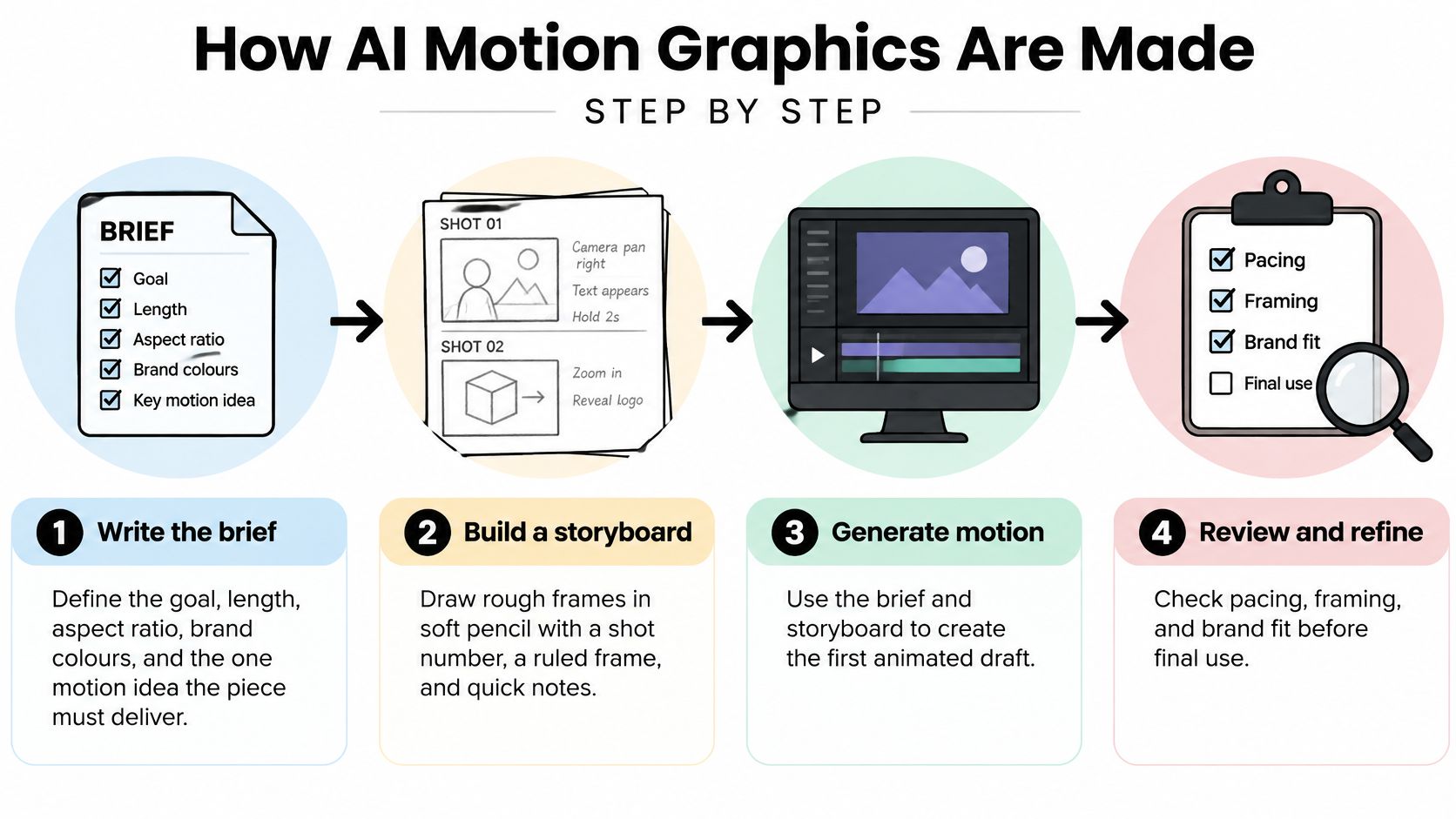
- Write the brief. State the goal, length, ratio and brand colours. Name the one motion idea. A vague brief gives pretty but useless clips.
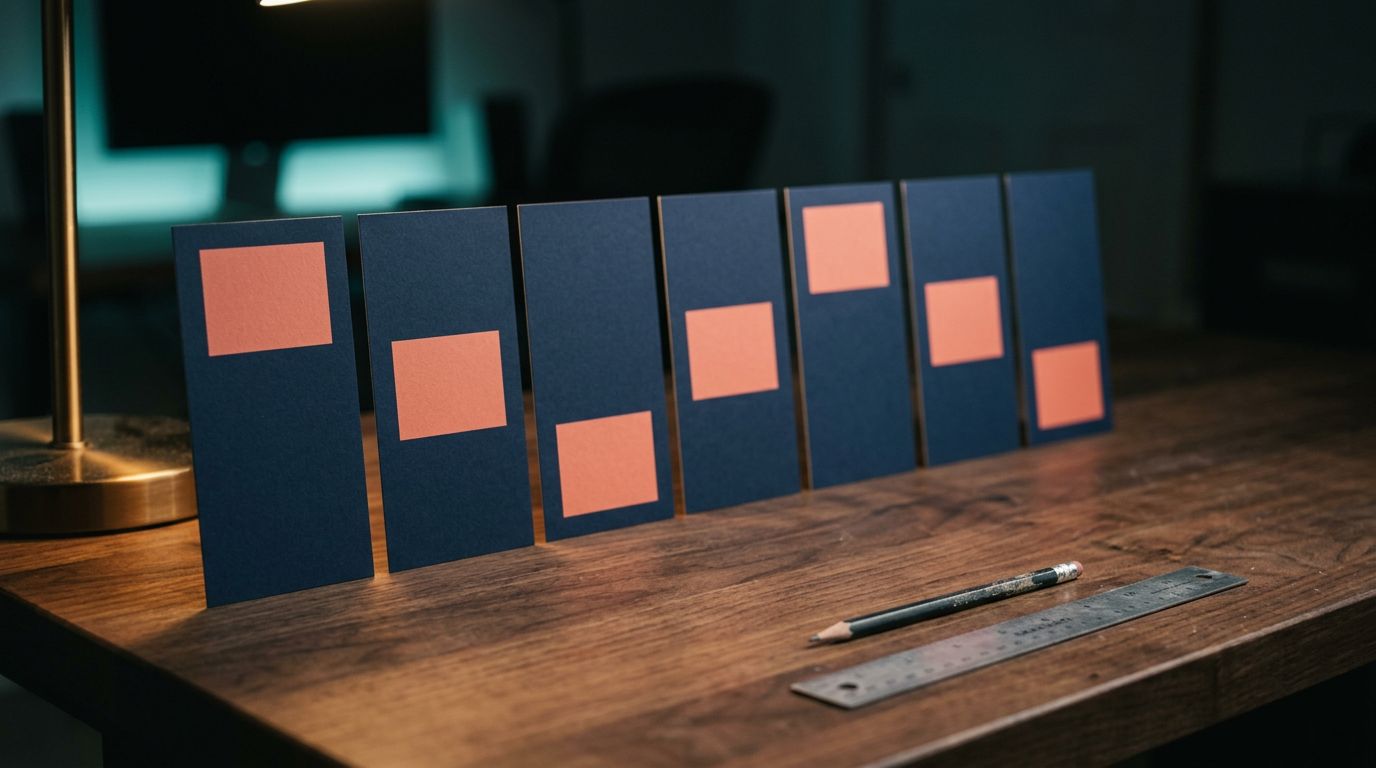
- Build a storyboard. Draw rough frames in soft pencil. Each frame includes an arrow showing movement, a ruled rectangle marking the frame edge, and a number identifying the shot. Keep it quick and uncleaned. If you skip this, clips won't cut together.
- Set the references. Pick one clean still of the logo, product or type. Add one motion reference clip. Dirty references cause drift.
- Write the motion prompt. State direction, speed and fixed parts. For example, slow left to right parallax, fixed logo geometry, no camera roll. No fixed parts means warped logos. The guide to AI video start and end frames shows how locked frames help.
- Generate short variants. Expect several tries per shot. Save each take with a number. Don't overwrite the best one.
- Select and check. Reject takes where type bends or shapes melt. Check at full size, not as a thumbnail.
- Composite and edit. Layer clips in your editor. Add crisp type, masks, audio and transitions here. Don't ask the model to bake in final type if you can add it later.
- Upscale and export. Upscale only if needed. Export at the delivery format. Play the file once outside the editor.
A finished piece contains the brief, the storyboard, the chosen takes, the edit file and the final export. Save all five.
How to Test AI Motion Output Before You Use It
A clip can look sharp and still fail. Say the image is crisp. But the logo slides left, then snaps back. It looks fine paused. It fails in motion.
Use four checks. Each one leads to keep or reject.
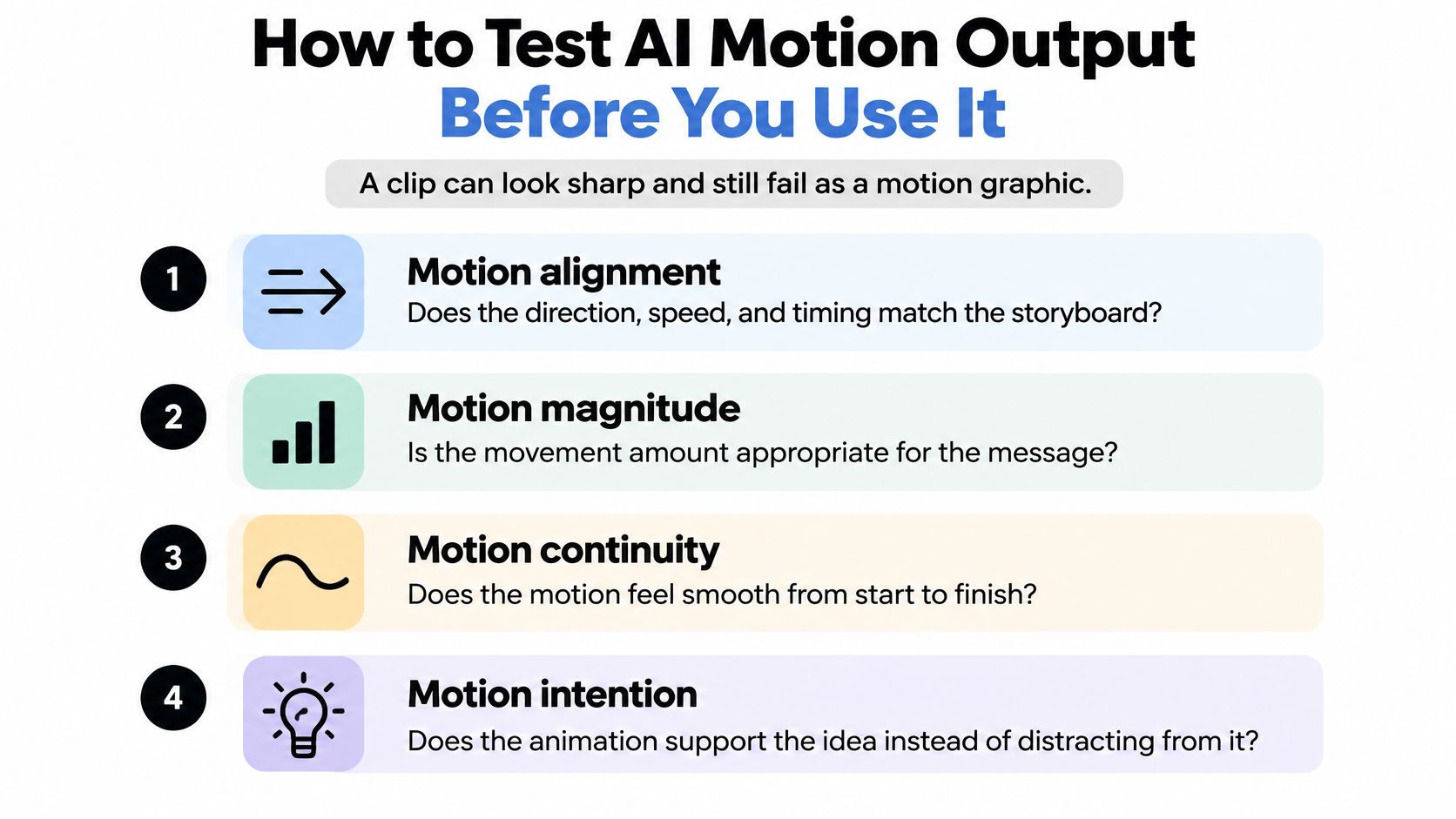
Four Checks Before Approval
- Motion alignment: Does direction, speed and timing match the storyboard? Reject a push in when you asked for parallax.
- Motion magnitude: How much do frames move? Too little looks frozen. Too much looks frantic.
- Frame to frame stability: Does the object keep its shape and identity? Watch corners, letterforms and product edges.
- Perceptual quality: Does it look clean at delivery size? Check noise, blur and banding.
Temporal problems have clear signs. Jerky movement means sudden changes between frames. Style drift means colour or texture shifts mid clip. Bent paths mean objects no longer follow a plausible line.
Set Thresholds by Asset Type
Use tight limits for logos, interface parts and product packs. A tiny warp breaks trust. Use looser limits for abstract backgrounds. Small drift there rarely matters.
Don't test static shots only. Add pans and zooms. Test foreground and background separation. Errors often appear only when the camera moves.
Render short previews. Play them on a loop. Scrub frame by frame. Then check type again after masking. Masking can expose edge wobble.
Avoid two false comforts. Smooth playback doesn't prove a pass. One good take doesn't prove the model is reliable. Test the same prompt more than once.
Rights, Provenance and Client Approval
Commercial use isn't just a platform terms question. Ask these four things before a client sees the work.
- Was the source licensed? Check the still or reference clip. Confirm the licence covers AI based editing.
- Is human input documented? Record the brief, timing choices, take selection and manual edits. Copyright can depend on meaningful human creative input.
- Can you recreate it later? Keep a provenance log. Store source files, model name, prompt text, take number, edit history and final export ID.
- Who signs off? Name the approver. Record the date and approved file.
Say an agency makes a lower third. It logs the brief, three rejected takes and a retouched logo edit. It sends the log with the export. Each entry holds date, model, prompt, source licence, human edits and export ID.
That log settles disputes months later. It also speeds up a requested change. Treat it as part of quality control.
Where AI Motion Graphics Fit Real Creative Jobs
Case 1, a product reel from one photo. Say a merchant has one clean shoe photo. Start with this template: product framing of , isolated on a clean background, even lighting, form and surface clearly described. Replace the blanks. Keep the rest. Run it on a video model. Then animate a slow rotation. The workflow in how to make a product demo video with AI follows that photo first logic.
The job shifts here. You spend less time shooting. You spend more time picking the take where the sole doesn't bend. Case 2, a looping title background. A designer needs soft shapes behind a title card. Precision matters less. A loose threshold works. Generate a few loops. Test the seam. Add the title in the editor. That's a good AI fit. Case 3, an animatic for approval. An agency storyboards an ad. It generates rough motion for each shot. The client approves pace and order. Only then does the team pay for full animation. AI saves money by preventing late changes. Case 4, lower third versions. A social team needs one lower third in several campaign colours. The layout stays locked. AI helps test background motion fast. The team still sets final type by hand. Version control becomes the main chore. The market context is large. Generative AI in animation was valued at $2.1 billion globally in 2024 and is projected to reach $15.9 billion by 2030, a 39.8% compound annual growth rate, according to the Research and Markets report. Growth doesn't remove craft. Labour moves from drawing to selection, cleanup and file control. Match your project to one case above. That tells you how strict to be. Start small. Pick an animatic or background loop. Don't start with a final brand film. The stakes are lower. The lessons come fast. That log helps later. It supports client approval and rights questions. It also lets you repeat a result. Visual Sandbox is one practical option for a first test. It's a pay-per-use platform for generating images, video, audio, 3D, and vector media using third-party AI models. It provides image, video, audio, vector and 3D generation in one workspace. Audio, 3D and vector generation use the same credit balance as video and images. So a small trial only uses what your test needs. You now know the first project, the first check and the first file to save. Start your first loop or animatic in Visual Sandbox, where you can generate the still, animate it, add sound and export variants in one pay per use workspace. Keep your brief, takes and version log beside the work, and you'll learn what AI motion graphics can do on a real job without buying tools you may not need.Choose Your First AI Motion Graphic Project