AI Logo Animation: Step-by-Step Guide for Clean Motion
November 20, 2026 · 12 min read
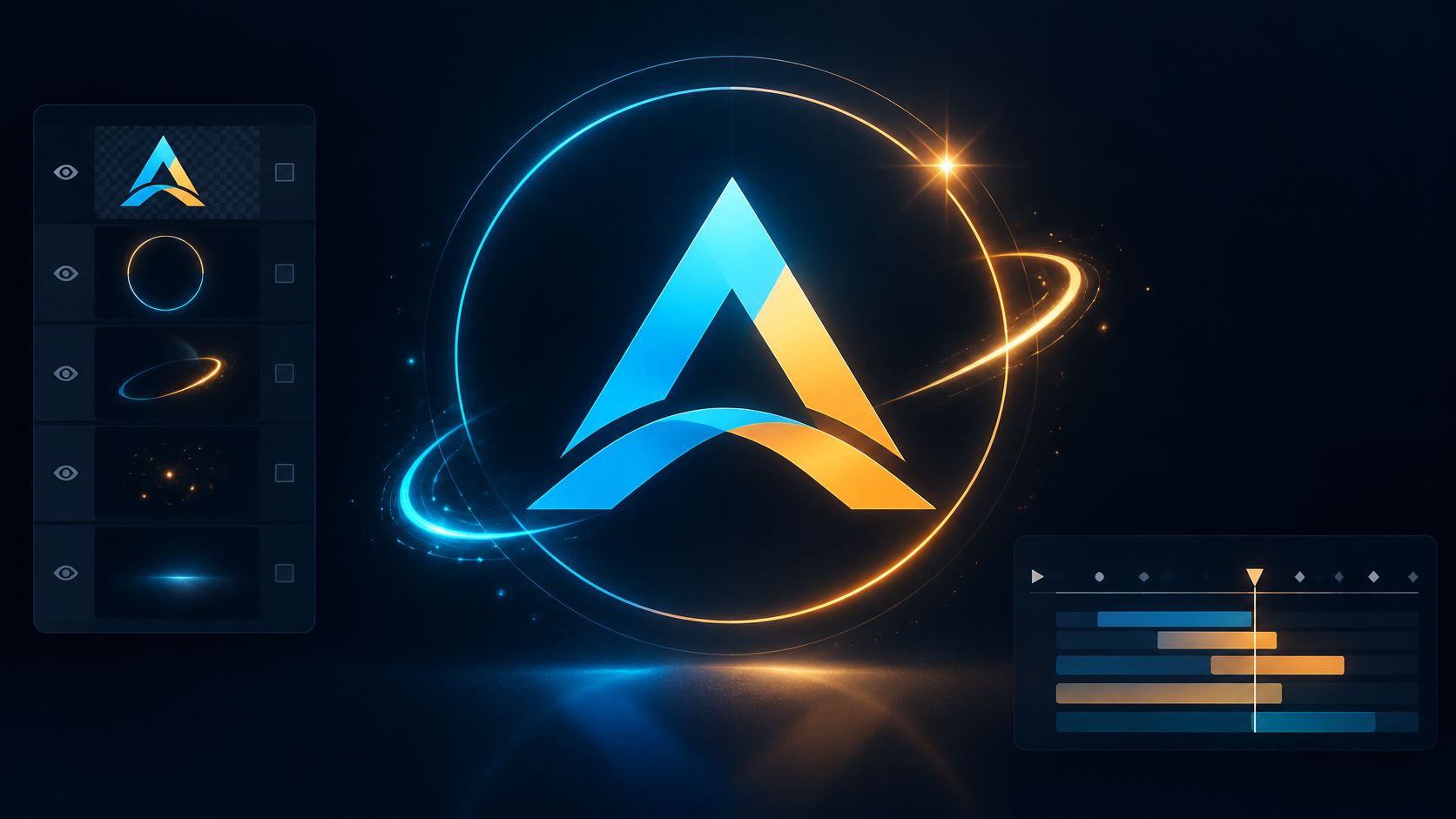
A client sends a PNG and wants the logo moving on their website by Friday. You can generate an impressive reveal quickly, but the wordmark comes back with a bent letter, the brand blue shifts, and the background isn't transparent.
That's the practical challenge with AI logo animation. Generating movement is only part of the job. You need to protect the approved artwork, direct the motion, and deliver files that work wherever the brand appears.
Table of Contents
- The Six-Step Workflow for Animating a Logo With AI
- Prepare Layered Vector Artwork Before You Generate
- Inspect the master before exporting
- Locked Elements and Rights Checks for Brand Logos
- Keep ownership evidence with the project
- Plan the Beats and Generate Motion Variants
- Give each beat a job
- Compare control, not spectacle
- Frame Rates and Export Formats for Each Destination
- Match the timeline before rendering
- Render the reusable master first
- Build an Accessible Delivery Package With Fallbacks
- Make reduced motion a real alternative
- Confirm the Package and Start Your First Animation
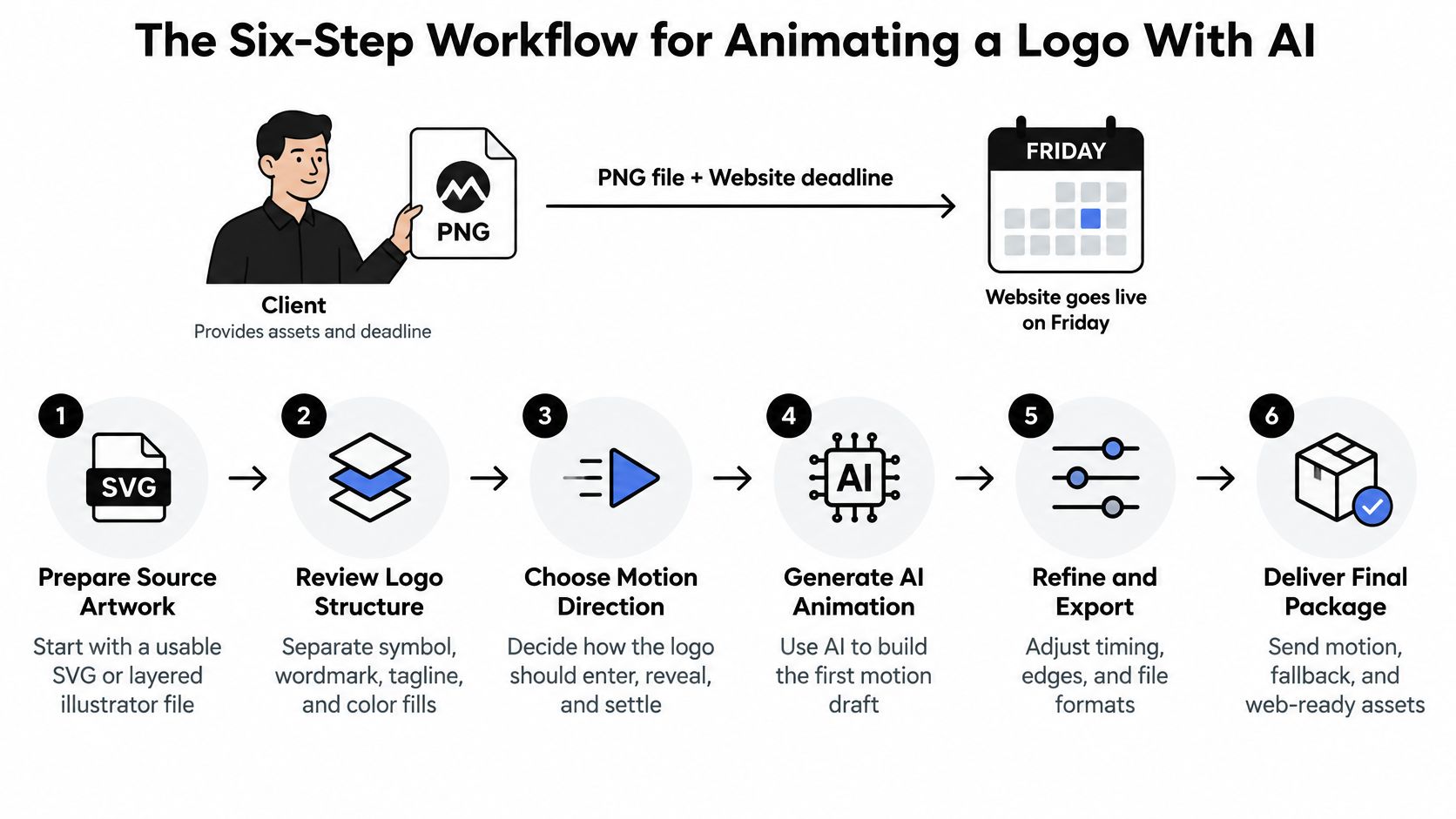
The Six-Step Workflow for Animating a Logo With AI
The model generates motion around the mark, never the mark itself. Keep that rule ahead of any tool choice.
The shortcut that causes later failures is sending a flattened image straight into a video model. A PNG with a baked-in glow gives you no independent symbol or wordmark to control. When the model repaints those pixels, individual frames can drift.
Animation stages from source file to export
| Stage | What you do | Output |
|---|---|---|
| 1. Source | Start from the SVG or layered vector master | Locked logo file |
| 2. Layers | Split symbol, wordmark and shapes into separate layers | Layer map |
| 3. Beats | Write a four-to-six-beat timing sheet | Beat storyboard |
| 4. Generate | Render six to ten motion variants without redrawing the mark | Chosen draft clip |
| 5. Composite | Place the exact SVG in the final frames and check it | Approved master |
| 6. Export | Render transparent and web formats | Delivery package |
The sequence separates creative exploration from final production.
For broader technique choices, use the AI motion graphics guide. If you're automating generation, RenderIO's guide to video generation APIs provides useful integration context.
Gather the vector file and list its layers before opening an AI tool.
Prepare Layered Vector Artwork Before You Generate
Start by opening the actual artwork, not the preview attached to an email. A usable master is an SVG or layered Illustrator file whose symbol, wordmark, tagline, and color fills remain separate objects.
The source should expose the parts you intend to move.
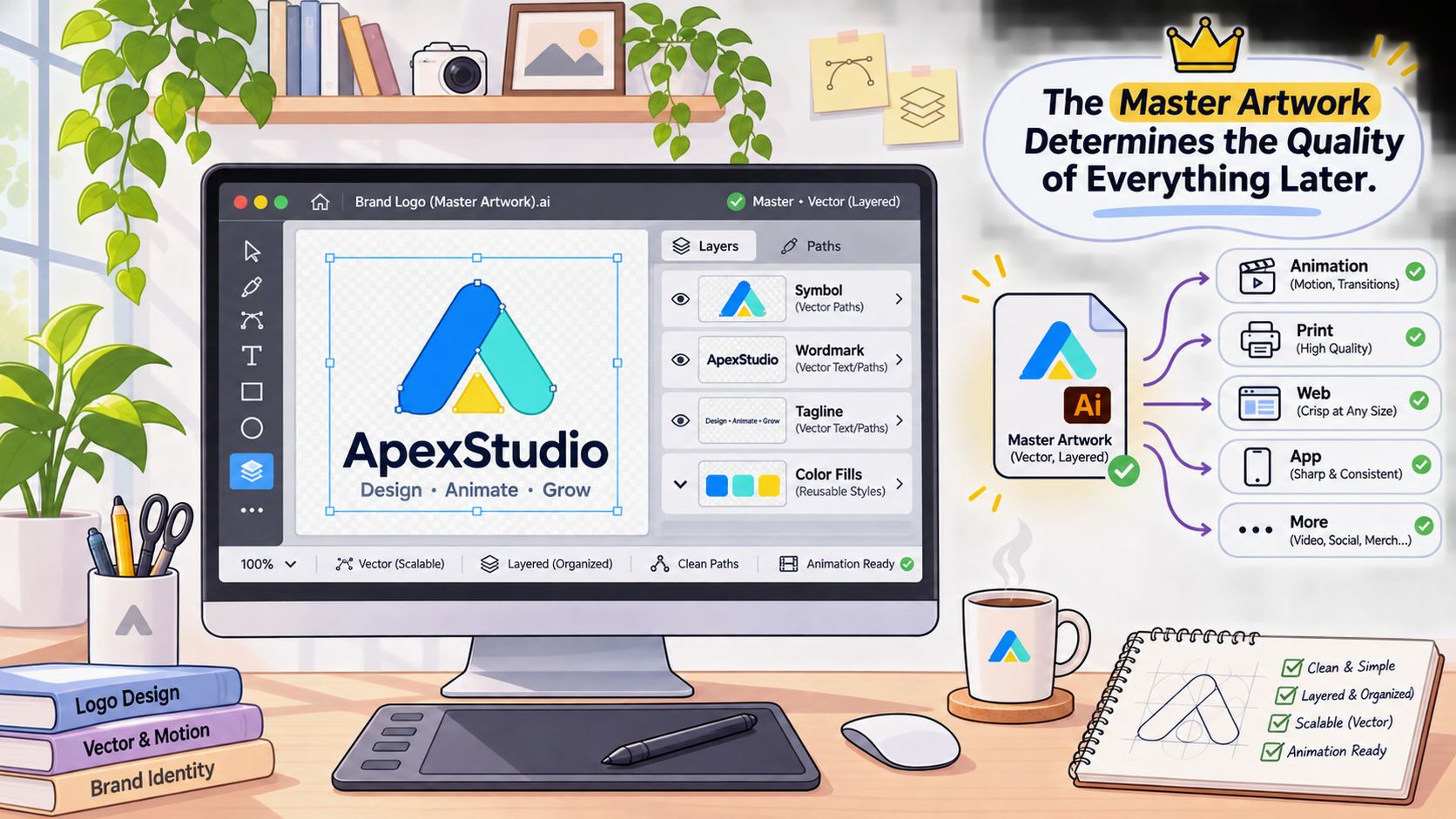
Inspect the master before exporting
- Check object types. Confirm that the artwork contains vector paths rather than an embedded bitmap inside an SVG container.
- Name the fills. Use named brand swatches so you can identify approved colors without sampling a screenshot.
- Separate effects. Remove baked-in shadows and glows from the working artwork. Rebuild them as independent compositing effects.
- Check dependencies. Resolve missing fonts, linked images, and clipping masks before handing the file to another editor.
A flattened PNG or JPEG can look perfectly clean while still being unsuitable for component animation. You can't select the symbol independently from the wordmark. Any separation requires masking, reconstruction, or a return to the original artwork.
AI Prompt Geneer's motion graphics guide recommends layered vector sources and explains that pixel-based image-to-video generation can soften edges, alter proportions, and shift colors between frames. Keep the vector master as your visual reference. Treat generated footage as a motion draft, not replacement brand artwork.
Practical rule: An SVG extension doesn't prove that the contents are vector. Inspect the objects.
If the brand owner only has a raster file, request the original design package. If it's unavailable, rebuild and approve the artwork before animating. The guide to vectorizing a logo covers that preparation step.
Use this video alongside your source-file inspection.
Finish with a layer map. For each layer, record its name, its animation job, and whether its geometry is locked. For example, the symbol may allow position and scale changes, while the tagline stays still and the background effects remain fully editable.
Locked Elements and Rights Checks for Brand Logos
A convincing animation isn't proof that the business owns everything in it. Separate copyright authorship, permission to use source assets, and trademark clearance before approving commercial delivery.
The California Lawyers Association's guidance on AI-generated logos explains the U.S. Copyright Office's approach: purely AI-generated material isn't copyrightable, and prompting alone doesn't establish authorship. Human additions may qualify, including creative redrawing, editing, selection, arrangement, or combination into a larger human-authored design. Protection covers the identifiable human contribution, not automatically every generated element.
Locked elements and checks before delivery
| Element | Lock rule | Check before delivery |
|---|---|---|
| Wordmark letterforms | Never regenerate, use the vector source | Text matches the source exactly |
| Symbol geometry and proportions | Animate transforms only, keep the source shape | Edges stay clean at 100 percent |
| Brand colours | Set fills from the brand guide | Colours match on light and dark backgrounds |
| Clear space | Keep the same margin in every frame | Nothing enters the margin |
| Tagline and small text | Composite as a static layer | Readable at the smallest display size |
| Third-party icons or fonts | Replace with licensed or original parts | Source noted in the approval record |
Keep ownership evidence with the project
For fonts, distinguish permission to use the typeface in a logo from permission to distribute its font files. Simon Stratford's explanation of using a font in a logo is useful context when reviewing the license attached to a wordmark.
Before commercial use, arrange trademark clearance that covers federal and state registers, common-law uses, design codes, and visually similar marks. Copyright and trademark answer different questions. A human-authored design can still conflict with another business's mark.
- Record provenance. Save the source artwork, font licenses, icon licenses, and brand-owner authorization.
- Document changes. Keep editable files showing what the designer redrew, arranged, or corrected.
- Version approvals. Attach the approved master, reviewer, clearance status, and permitted destinations to the release record.
Unreviewed AI output can serve as a storyboard or motion reference. Final delivery needs documented approval and resolved rights questions. For a high-stakes launch, involve a trademark lawyer rather than treating a visual similarity check as legal clearance.
Plan the Beats and Generate Motion Variants
Write the motion before writing the prompt. A beat sheet makes it possible to judge whether a clip follows the intended sequence instead of just looking exciting.
Varg's logo animation workflow recommends four to six beats and six to ten motion variants before selection. Its approach also aligns one whoosh and one impact with the main movement peaks, then composites the exact SVG into the ending frames.
Give each beat a job
Use a sequence like this as a working storyboard:
- Spark. A small highlight establishes the focal point without revealing any lettering.
- Ring. A surrounding ring expands and fades while the symbol remains still.
- Symbol. An editor-controlled mask reveals the original symbol layer.
- Wordmark. The approved wordmark enters as a single intact object.
- Final hold. Effects settle, leaving the logo unobstructed.
Keep the generated portion focused on atmosphere, camera behavior, and surrounding effects. Don't ask the model to draw, redraw, assemble letters, or spell the company name.
A practical motion prompt could read:
Locked camera. A soft ring expands around the empty center, then fades. Fine particles settle outward. No text, symbols, or new objects.
That prompt produces an effects plate for compositing rather than asking the generator to preserve typography. If you use reference frames, the guide to AI video start and end frames can help you plan the boundaries. Still inspect the movement between those boundaries.
Compare control, not spectacle
Judge variants against the same beat sheet. Look for stable edges in the effects, a clear focal point, sensible timing, and enough quiet space for the wordmark. Reject clips with flicker, morphing objects, or generated text.
Change a single creative variable between attempts. Keep the camera fixed while testing particle density, for example. Otherwise, you won't know which adjustment improved the result.
Add sound after choosing the movement. For a musical bed, LesFM's guide to royalty-free tracks for motion design can help with selection. Save the applicable license with the project.
Generate the initial batch from your beat sheet, choose the strongest motion draft, and composite the exact SVG into the ending frames. Keep the original logo layers intact throughout any earlier reveal.
Frame Rates and Export Formats for Each Destination
Frame rate and format by destination
| Destination | Frame rate | Format | Transparent background |
|---|---|---|---|
| Corporate or digital video | 30 fps | H.264 MP4 with branded background | No |
| Cinematic or film-style reel | 24 fps | ProRes 4444 MOV with alpha | Yes |
| Fluid web or social motion | 60 fps | H.264 or H.265 MP4 | No |
| Website overlay on changing backgrounds | 30 fps | WebM with alpha or APNG | Yes |
| Editor compositing master | 30 fps | ProRes 4444 MOV with alpha | Yes |
| Lightweight embed or chat | Follow the receiving platform's playback and size limits | GIF | No |
These are starting presets, not reasons to override an existing edit. Anonymous's logo animation delivery guide identifies 24 fps for cinematic output, 30 fps for corporate and digital video, and 60 fps for some web and social applications. It also describes ProRes 4444 MOV with alpha, WebM with alpha, APNG, and upload-ready H.264 MP4 delivery.
Match the timeline before rendering
Choose the project frame rate before refining motion. If the logo sits inside an existing video, match that video's timeline. For standalone corporate delivery, use the digital-video preset unless the destination specifies otherwise.
More frames don't repair poor timing. A rushed reveal still feels rushed at a higher frame rate. Fix the spacing between movement beats before increasing render demands.
Use sparse keyframes with ease-out for arrivals and ease-in-out for movement that accelerates and settles. Linear interpolation makes a logo stop abruptly unless that mechanical character is intentional.
Render the reusable master first
Export a transparent compositing master before making distribution copies. ProRes 4444 MOV preserves an alpha channel for editing. Check it over both a bright background and a dark one so edge halos don't escape review.
Then make H.264 or H.265 derivatives for direct playback. A branded-background MP4 is simpler for social upload than a transparent asset that the platform may not accept.
WebM with alpha and APNG are options for web overlays, subject to implementation testing. GIF can serve as a simple fallback, but it isn't automatically lightweight. Restrict its dimensions, colors, and motion to the actual placement.
List every destination before rendering. Build the package around a compositing master, an upload MP4, and a tested web file, rather than expecting a single export to work everywhere.
Build an Accessible Delivery Package With Fallbacks
The hero clip isn't the whole deliverable. A website visitor may disable motion, encounter a failed video load, or view the mark against a different background.
Package those cases deliberately.
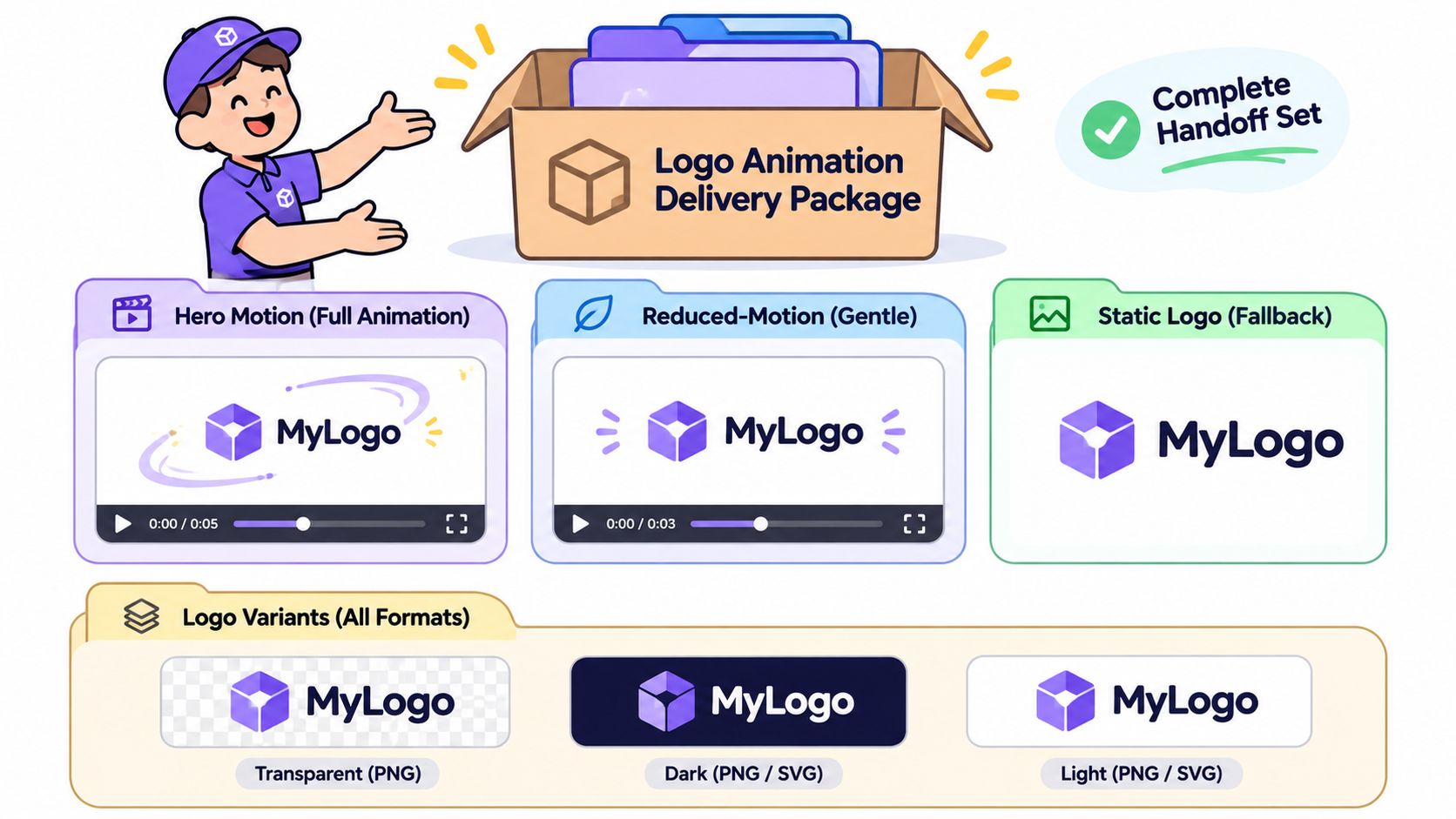
Package items and file names
| Item | What it is for |
|---|---|
Full-motion master, logo-hero.mov |
Hero clip with the complete reveal |
Reduced-motion variant, logo-reduced.mp4 |
Calmer cut for users who set prefers-reduced-motion |
Static logo fallback, logo-static.svg |
Still image for motion-off, slow loads or failed playback |
Transparent version, logo-overlay.webm |
Overlay on changing backgrounds |
Dark and light versions, logo-on-dark.mp4 and logo-on-light.mp4 |
Matching backgrounds for each context |
Timing and contrast note, logo-delivery-notes.txt |
Records the timing and contrast checks |
Design Your Way's logo animation guide discusses WCAG-related concerns around motion lasting more than five seconds, flashing, and interaction-triggered animation. It also describes reduced-motion support and reported consumer research in which lifelike, self-directed movement worked better for brands perceived as dynamic but worse for brands associated with stability.
Make reduced motion a real alternative
Browsers expose the prefers-reduced-motion preference. Have the site developer use it to select a calmer variant or the static logo. Don't slow down a sweeping zoom, because the large movement remains.
Avoid rapid flashing and repeated large zooms. Keep essential information available without playback. A viewer shouldn't need to watch the animation to identify the company or read its tagline.
More movement isn't automatically a better expression of the brand.
Match the motion personality to the typography, color palette, and brand positioning. A restrained opacity reveal may suit a stability-focused business better than a bouncing symbol.
Adapt the approved composition to widescreen, square, and vertical layouts. Reframe rather than stretch, and retain a transparent MOV or WebM for changing backgrounds. Give every package item a filename and a plain-language purpose so the developer doesn't have to guess which asset to deploy.
Confirm the Package and Start Your First Animation
An attractive fullscreen preview can hide a weak small-size wordmark. A transparent file can also behave differently after upload than it does inside the editor.
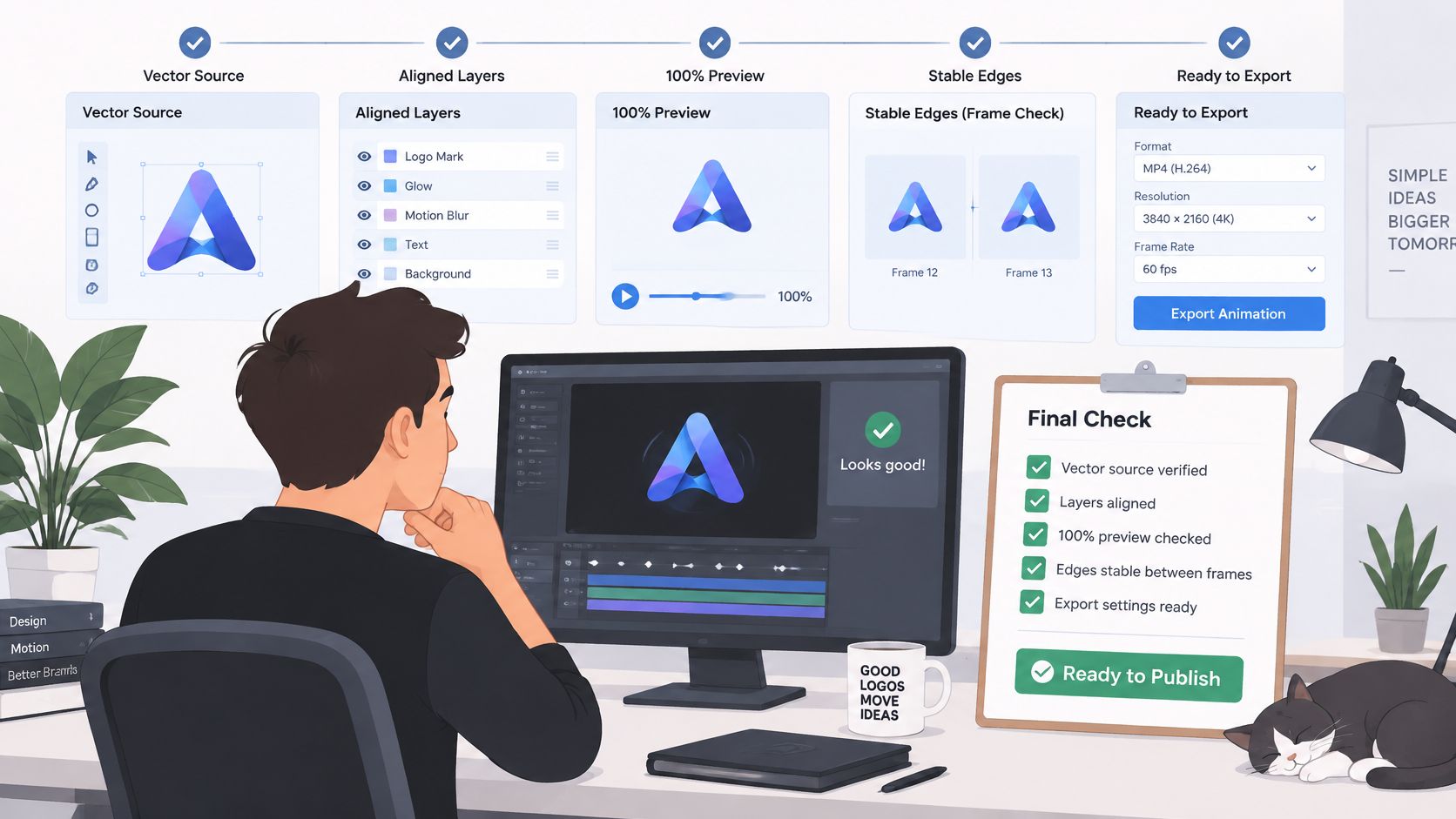
Use the delivered files, not just the timeline preview, for the final review. The ACM evaluation reference treats visual-asset fidelity, temporal flicker, morphing, garbled text, and unnatural motion as separate risks. Its production checklist includes inspection at 100 percent scale.
- Inspect the vector source. Confirm that the approved artwork, not a superseded draft, is in the project.
- Verify layer alignment. Compare the symbol, wordmark, tagline, and masks against the approved composition.
- Preview at native scale. Look for soft edges, halos, and unintended clipping without relying on a zoomed-out player.
- Check frame-to-frame stability. Scrub through transitions and inspect any edge that appears to shimmer.
- Test the smallest placement. Confirm that the company name and required small text remain readable.
- Test the final codec on its destination. Upload the actual file and check playback, transparency, background treatment, and fallback behavior.
Keep the working setup organized enough to repeat that review.
If you want a shared place to generate supporting assets, Visual Sandbox runs image, video, audio, vector, and 3D models in one workspace. Prices appear before each run, which helps when comparing animation variants. That convenience doesn't replace rights clearance or human approval.
Run the checks on the master, save the approval record, and export the named delivery package. Release the files only when the destination tests pass.
Visit Visual Sandbox to generate motion drafts and supporting image, audio, vector, and 3D assets in one workspace. Bring your approved logo, test a focused motion direction, and keep the exact mark under designer control through final delivery.