Best AI Photo Editing Tools in 2026: A Task-Based Guide
November 14, 2026 · 16 min read
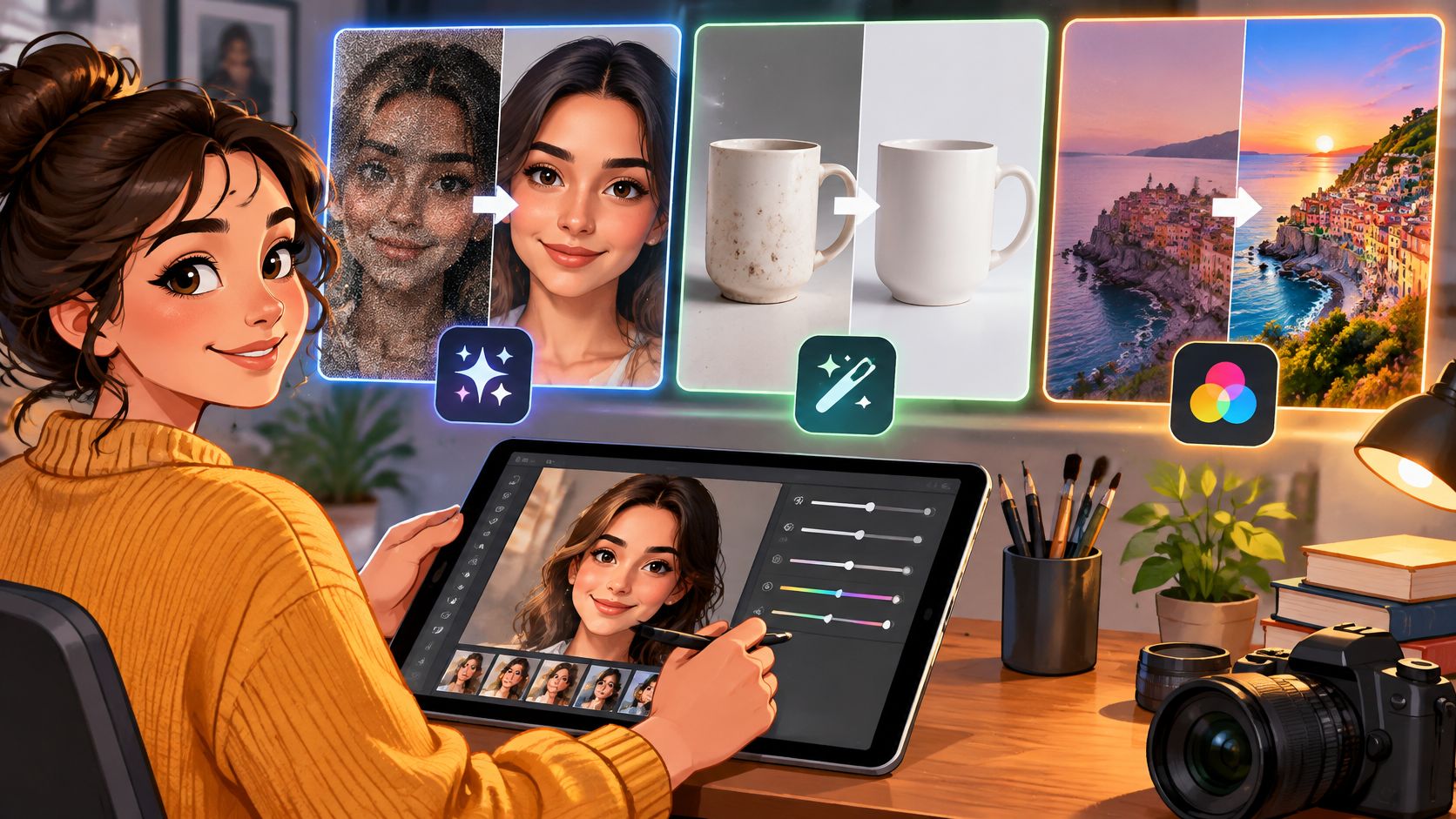
Three people open a photo editor today, and they need three different things.
The first takes over a wedding where every frame was shot at ISO 6400, and the shadows are full of color noise. The second runs a small shop and has fifty products on a kitchen table that need to sit on clean white with believable shadows by Thursday. The third manages social accounts and has one strong photo that has to become four finished posts with headlines.
Put all three in the same app and two of them waste time and money. AI photo editing is not one category in 2026. It is noise reduction, RAW development, masking, background removal, batch catalog prep, generative fill, and layout. Each job has a tool that does it well and half a dozen that do it badly.
The behavior shift is measurable. The share of people across six countries using AI to make an image weekly rose from 5% in 2024 to 9% in 2025, according to Reuters Institute figures reported in this AI image generation statistics summary. If noise is your immediate problem rather than your whole workflow, start with the top AI tools for denoising photos instead of buying a full editor.
Below are ten tools, each matched to the job it saves time on: Visual Sandbox for model choice and pay-per-run pricing, Photoshop for compositing, Lightroom for RAW volume, Luminar Neo for fast stylistic passes, Photoroom for catalogs, Canva for finished posts, Pixlr for browser work, Picsart for stylized social edits, DxO PhotoLab for high ISO files, and ON1 Photo RAW for a single-app library.
Table of Contents
- 1. Visual Sandbox
- The task it saves time on
- What I'd weigh before switching
- 2. Adobe Photoshop
- Where it earns its keep
- Where it costs you
- 3. Adobe Lightroom
- The task it fits
- Where it stops
- 4. Luminar Neo
- What it saves time on
- What it doesn't do
- 5. Photoroom
- What works
- What to watch
- 6. Canva
- The task it fits
- Where it falls short
- 7. Pixlr
- Where the value depends on you
- 8. Picsart
- What works
- What doesn't
- 9. DxO PhotoLab
- Where it fits
- Where it doesn't
- 10. ON1 Photo RAW
- The task it fits
- The trade-offs
- AI photo editing tools compared by task, pricing model, and access
- Choosing by Task, Not by Hype
1. Visual Sandbox
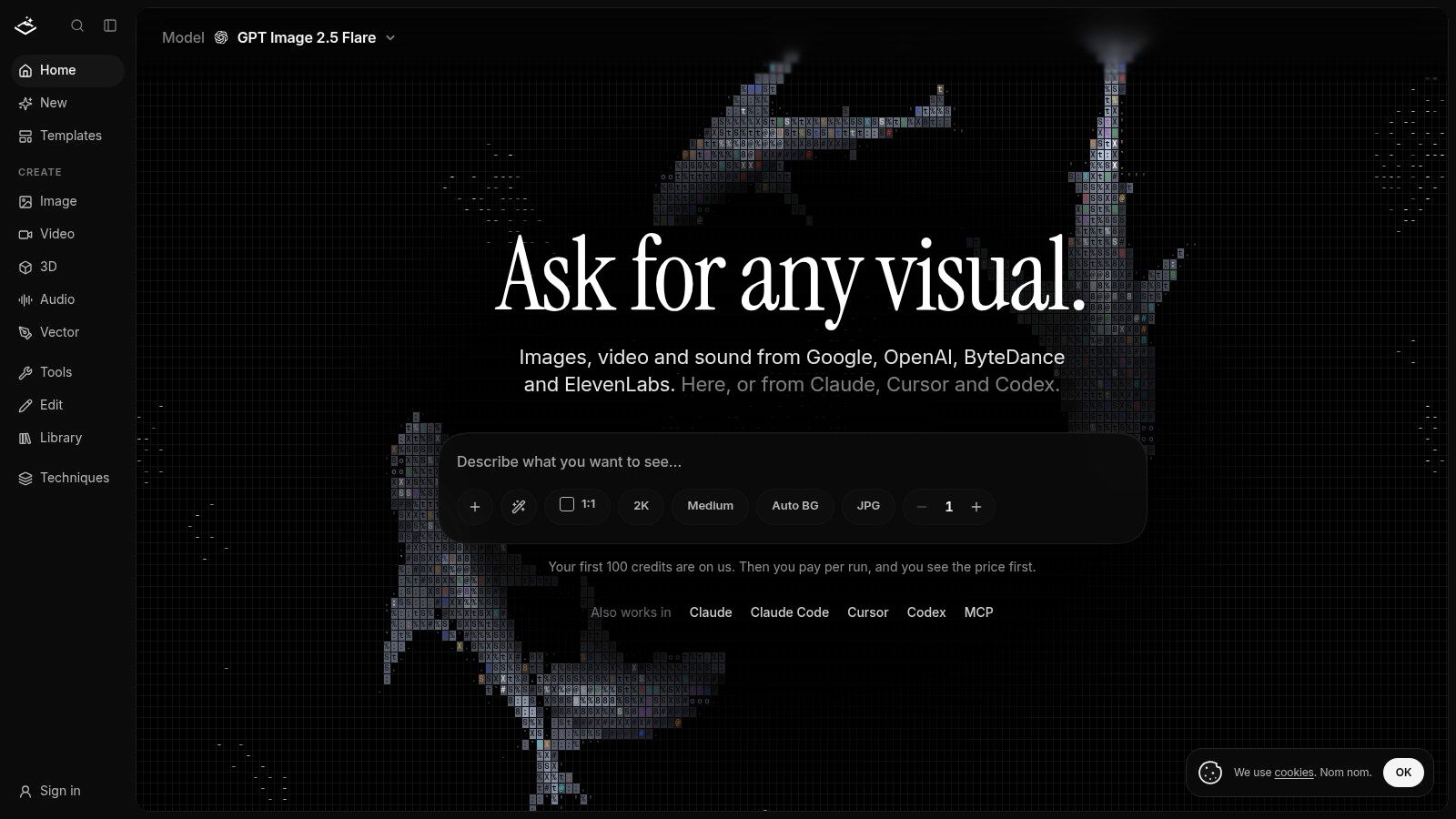
Some jobs need one specific model. Others need three models compared side by side before you commit budget. This workspace is built for the second case: more than 91 third-party models for images, video, audio, vectors, and 3D, all behind one credit balance.
You work in the web app, or from a CLI, API, or MCP connection inside Claude, Cursor, or Codex. The integrated agent reads a plain-language request, picks a model, and writes the model-specific prompt for you. Dedicated utilities handle background removal and upscaling, so routine cleanup never needs a generative model: Pruna Upscale runs $0.01 per image and Topaz Upscale $0.10.
The task it saves time on
Product and campaign imagery where the brief keeps moving. Prepared briefs cover product photography, pet portraits, logos, and icon sets, and every brief stays editable before it runs. One photo of a product produces a studio shot and a new scene.
Two details make this practical on real jobs. Prices appear before a generation runs, so a batch estimate doesn't arrive as a surprise invoice. And the same balance covers every interface, so a clip generated in Cursor bills against the same credits as a still made in the browser.
Output size is the hidden variable in any per-run price. Google Cloud lists Gemini 3.1 Flash Image output at $0.045 for 512-pixel output and $0.15 for 4K output on its model pricing page, a jump driven by output resolution alone. Visual Sandbox's own spread tells the same story: image generation starts at $0.01 per image across 21 image models, while a studio shot on white made with GPT Image 2 costs $0.27. Check the price at the size and model you need before you batch a catalog.
What I'd weigh before switching
- Cost scales with ambition: model choice, settings, and video duration all move the total. Credits are prepaid, purchases start at $10, and one credit equals one cent.
- Sign-in through a browser: MCP connections authenticate with a browser session rather than a pasted API key, an authorization model the MCP specification sets out.
- No subscription: credits don't expire, and an optional automatic reload tops the balance up when it falls below $1, so a quiet month costs nothing.
Practical rule: Run one paid test per model before you plan a campaign around it. Differences show up fast on faces and on product edges.
Website: visualsandbox.com
2. Adobe Photoshop
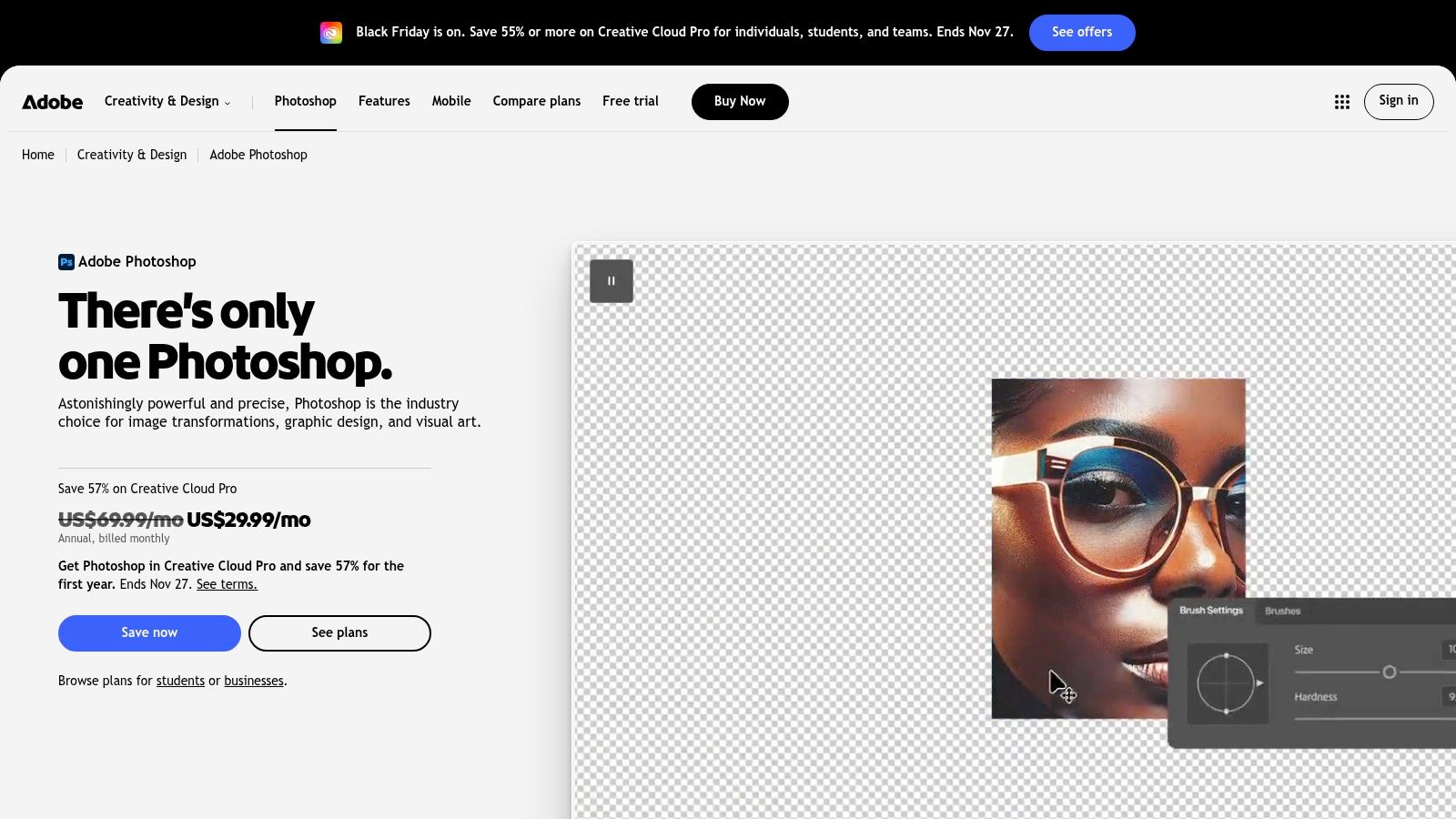
Choose Photoshop when an AI edit has to survive close inspection: a print ad, a hero image on a large monitor, a composite pulled from several sources. Generative Fill adds, replaces, or removes content inside a selection. Generative Expand pushes the canvas past the original frame, which turns a square product shot into a wide banner without a reshoot. Both land on their own layer, so you can mask, blend, or discard the result without touching the base pixels.
Adobe shipped Generative Fill in the desktop beta in May 2023, and by the launch announcement its Firefly beta had generated more than 100 million assets in roughly six weeks, per Adobe's announcement. In a 2025 study of 11 recent design graduates, 8 used Generative Fill during poster creation, according to the Design Society study. Small sample, clear direction.
Where it earns its keep
- Hair, glass, and motion blur: subject selection still beats most rivals on the edges cheaper tools turn to mush.
- Repair after generation: when a generated sleeve or hand comes out wrong, the manual tools sit in the same document.
- Multi-element composites: layers, masks, and adjustment stacks keep a complex scene editable a week later.
Where it costs you
The learning curve is steep, and generative features sit behind credit limits that vary by plan. For a batch of plain white backgrounds, that overhead buys nothing.
Run Photoshop when the edit will be examined up close. For volume work, a narrower tool finishes sooner.
If the output is heading to a printer, export settings matter as much as the retouch. Making an AI image print ready covers resolution and color before you send the file.
3. Adobe Lightroom
A photographer's AI work is usually the same three adjustments applied to 900 frames without wrecking any of them. Lightroom is built for that repetition. Edits are non-destructive, masks target sky and subject, and the catalog keeps a shoot findable six months later.
Culling is where the hours disappear. In a 2025 survey of more than 1,000 photographers who already used AI tools, 71% said they used AI mainly for culling, and 62% combined AI with manual work rather than handing over the job, per Digital Camera World's survey report. That split matches what a good edit looks like. AI sorts and roughs in the exposure, and a person decides which frames are worth keeping.
The task it fits
First-pass development on a full shoot, plus anything that must look consistent across a set: a wedding gallery, a product range shot in one day, a property listing with twelve rooms.
Where it stops
Compositing. Pixel-level repair. Type on an image. Lightroom reads RAW files beautifully and then hands you off, which is why the photography plan bundles both apps.
A Lightroom catalog without keywords is a folder with extra steps. Write them at import, not later.
If you're weighing a switch, compare AI photo editing alternatives before you migrate a catalog you've spent years building.
4. Luminar Neo
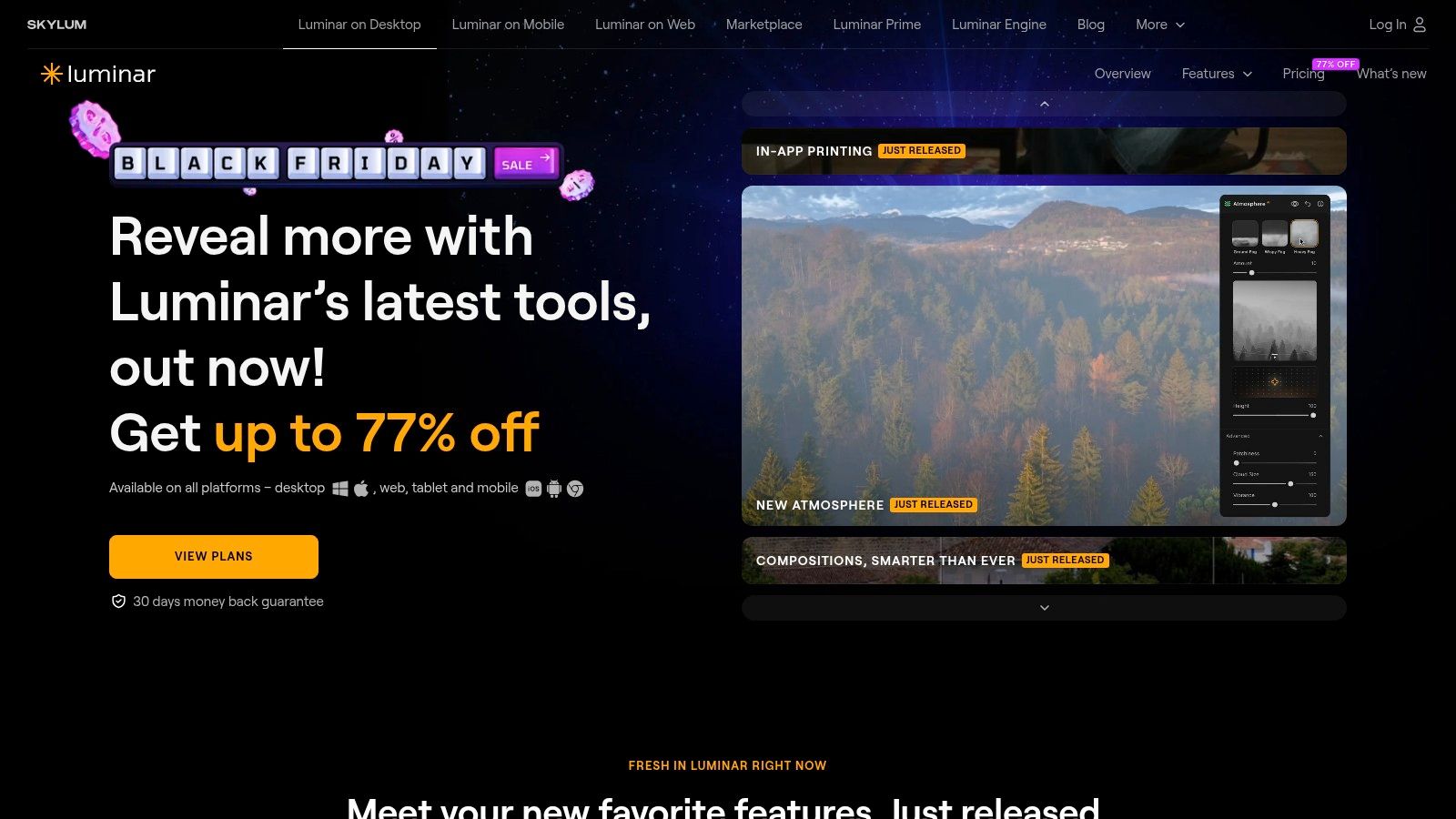
Bad skies are why many people try Luminar. Sky replacement handles a flat gray wedding sky and matches the light on the ground well enough to pass at normal viewing size, which is more than most one-click swaps manage.
The rest of the app follows the same pattern: guided tools with sliders strong enough to pull back. Portrait and skin work, light and color enhancement, and scene adjustments all start from an AI guess and end wherever you push them.
What it saves time on
- Sky replacement on dull exteriors: real estate and event photos that would take twenty minutes of masking get a usable result in two.
- Portrait passes on small batches: eye brightening and skin softening that stay inside one app.
- Learning composition: the automatic crop suggestion is a decent second opinion for newer photographers.
What it doesn't do
Intricate compositing, layer-heavy retouching, or high-volume catalog work. Some advanced and generative features carry separate access terms, and license bundles plus frequent promotions make total cost harder to compare than a flat subscription.
Where it wins: a photographer who wants one stylistic pass finished in a single screen, not a project file.
Website: skylum.com/luminar-neo
5. Photoroom
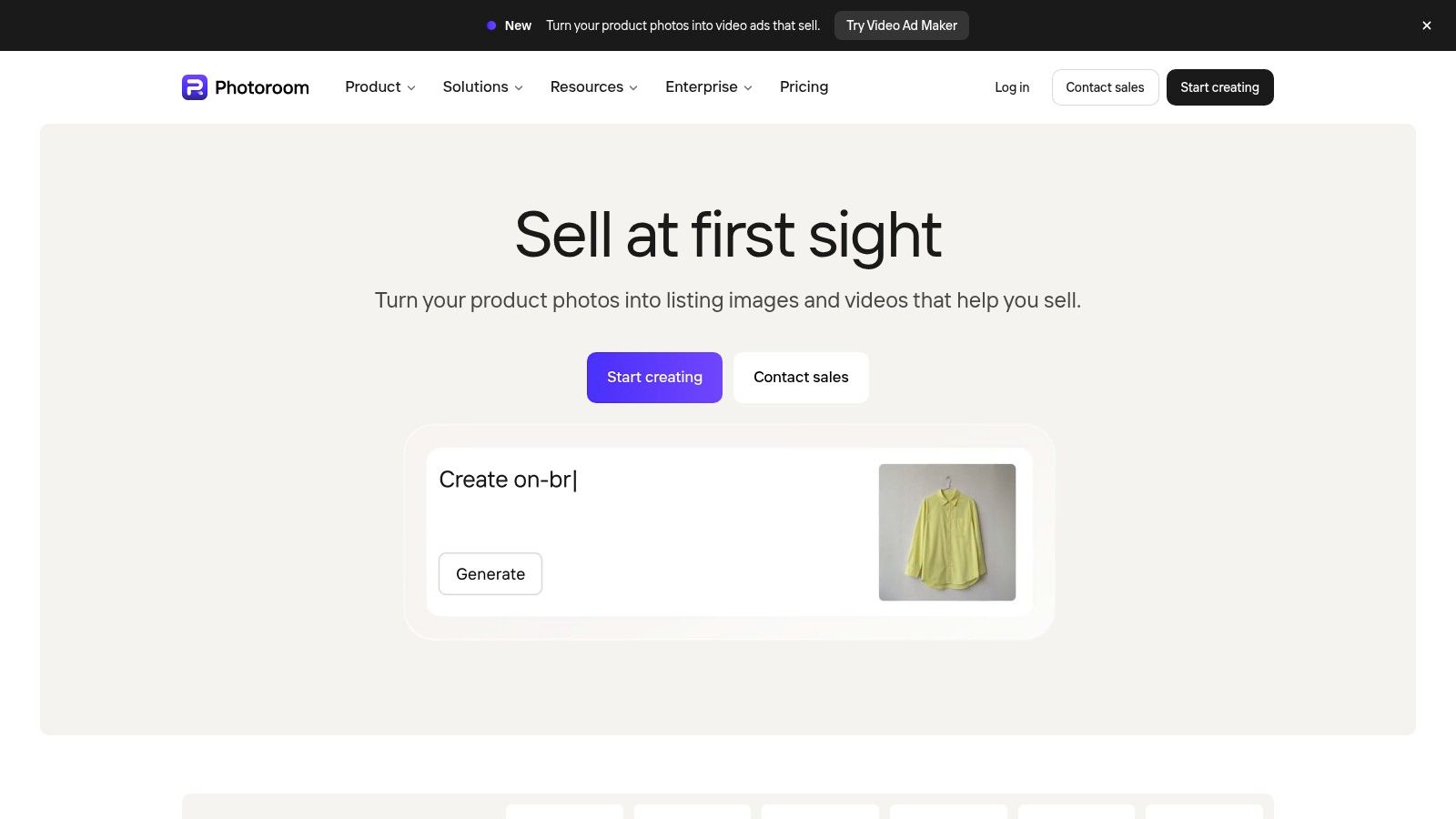
Fifty products on a table is a different job from one hero image. Photoroom is built around the fifty: background removal and replacement, product retouching, fill and expand for awkward crops, batch templates, and API or MCP access on eligible plans.
What works
Consistency. Templates hold framing, shadow, and background constant across a range, which is what a marketplace grid needs. Cut, place, export, repeat.
What to watch
Paid plans carry monthly export limits, and generative features draw on credits, so a seasonal push can force a higher tier. The editor isn't built for layer-heavy compositing, and it won't replace a RAW workflow.
Disclosure is the part most comparisons skip. Removing a stray cable is low risk. Changing a product's color, texture, dimensions, or included accessories is not, and research on governance for synthetic imagery lists consent, provenance, auditability, disclosure, and human approval among the requirements buyers now ask about.
Background removal is the cheapest step in most catalog jobs and the one many teams mis-budget. What removing a photo background with AI costs breaks down where per-image spend lands.
6. Canva
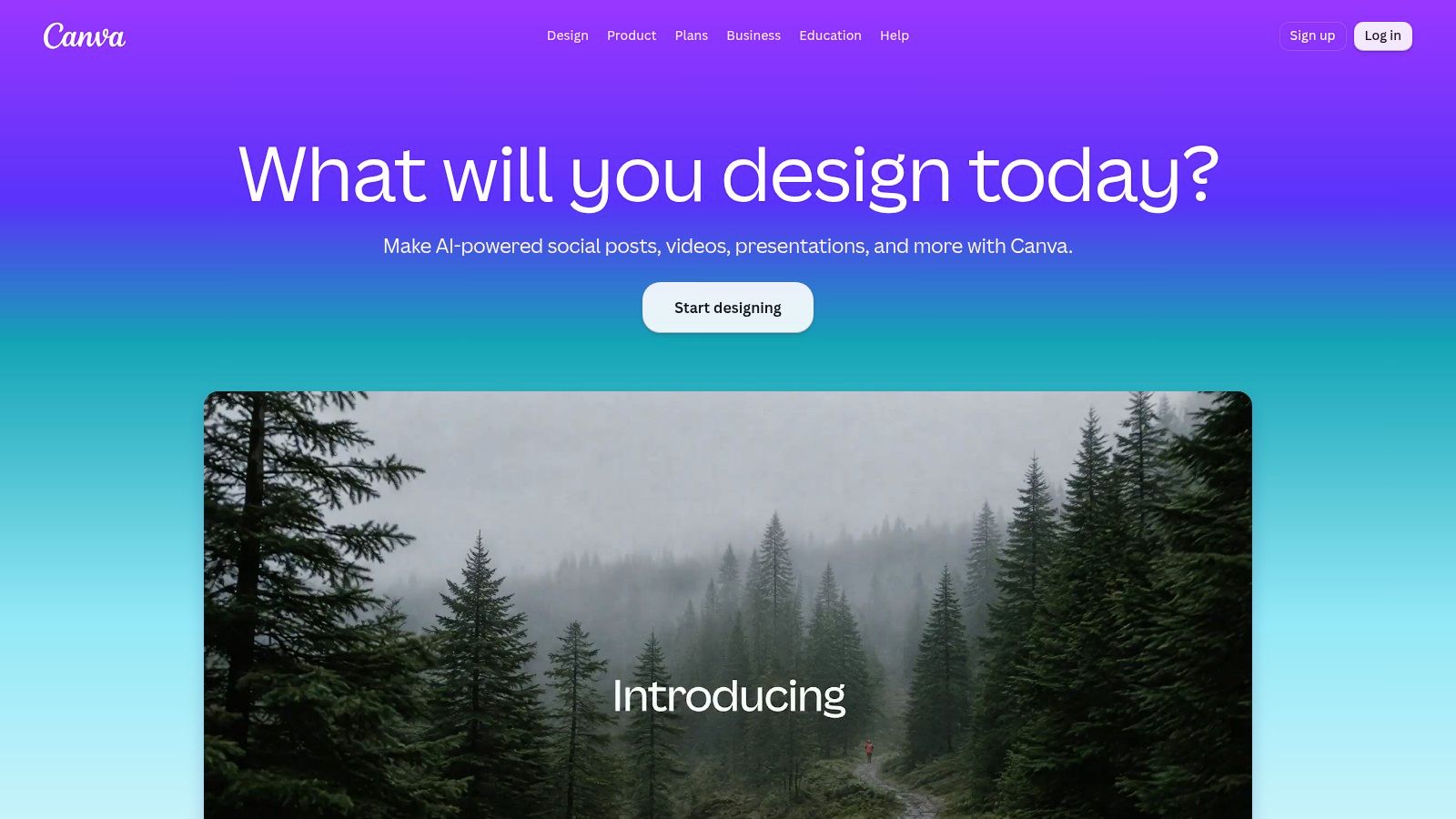
One product photo has to become twelve assets before Friday: feed, story, banner, email header. That is the job Canva is built for. The edit sits inside the layout. Magic Edit handles prompt-based changes to part of an image, the background remover and distraction cleanup fix the shot, and templates, brand fonts, and export presets carry it to every platform size.
The task it fits
One image turned into a finished post. Drop the photo into a template, swap the background, add the headline, then resize for each channel. Nothing in that sequence needs a layers panel. A social team shipping daily saves more time on the resize-and-brand side than on the edit itself.
Where it falls short
- RAW files: there is no serious RAW pipeline, and high-resolution files with fine detail get handled roughly.
- Fine control: template logic shapes what you can do, and precise retouching is not the point of the app.
- Plan dependence: AI feature access and usage limits vary by tier.
None of those gaps matter much for the job it does. If the layout is already settled and you only need the visual, Visual Sandbox's prepared image briefs for product shots, portraits, and icon sets can produce the image without starting from a blank prompt.
7. Pixlr
Pixlr splits its work across apps: Pixlr X for quick AI edits, Pixlr E for layer-based work closer to a desktop editor, and a batch editor for volume. It runs in a browser, opens on mobile, and doesn't demand a powerful machine.
AI cutout, generative backdrop, object removal, and generative fill are the features that earn the subscription. Underneath, each works the same way: you mark an area with a mask, and the tool fills it.
Where the value depends on you
That mechanic explains most disappointments. A loose mask produces a loose result, in Pixlr or anywhere else, so brush edges deliberately rather than lassoing roughly and hoping. Tighten the selection around hair, glass, or product edges before running fill, and the output usually needs no second pass.
Pixlr fits the in-between job: a folder of event shots that need backgrounds cleaned, cutouts for a mockup, a quick object removal on a client photo. It is not a dedicated product-photo tool, and it is not a RAW developer. AI usage is limited by plan credits or fair-use terms, so a heavy month costs more than the sticker price suggests. The free tier is fine for testing and thin for production.
Cheapest useful test: run one cutout of a difficult edge, like hair against a busy background, on the plan you're considering. Every browser editor looks good on a white mug.
Website: pixlr.com
8. Picsart
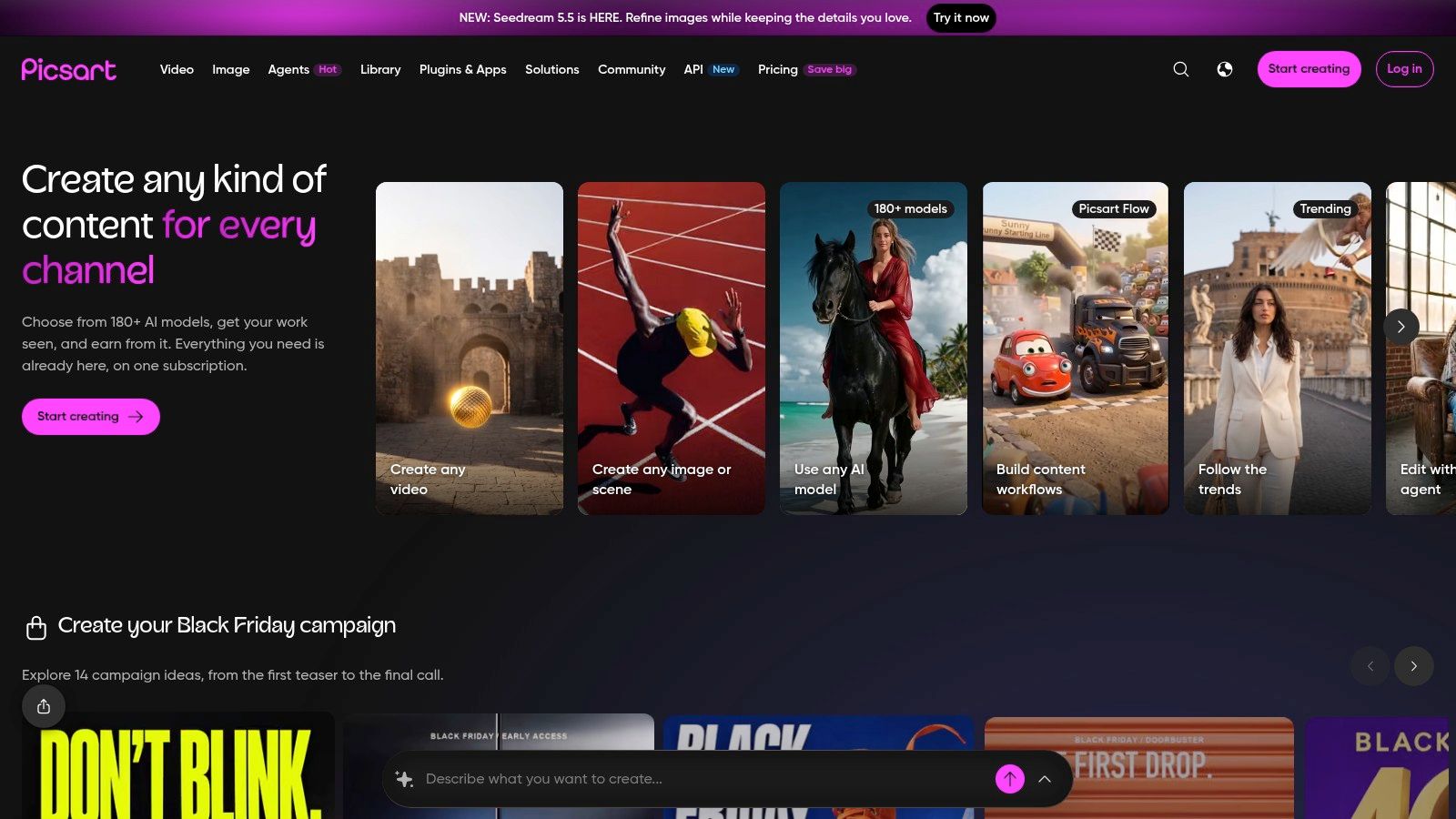
Picsart is for the edit that is supposed to look like an edit. AI Replace changes a selected object through a prompt, which is the fastest route from a decent photo to a stylized post that fits a campaign palette.
Phone editing is still the smaller half of the market. A 2025 CNET survey found that 7% of respondents used AI photo-editing tools on their phones, per CNET's survey write-up. The number is modest, but social content is made on the phone, and a mobile-first editor removes a file transfer from the chain.
What works
- Object swaps: AI Replace handles a prop color change or a clothing swap without a compositing session.
- Effects and assets: stickers, fonts, and treatments sit in the same place as the edit.
- Speed on stylized briefs: moods that would take an hour in a desktop editor.
What doesn't
AI Replace uses credits, the toolset is busy enough to slow a simple job, and this is not the tool for RAW processing or a two-hundred-image catalog.
Website: picsart.com
9. DxO PhotoLab
Noise is the first thing to fix on a badly lit shoot, and it is the one job where a specialist beats a generalist. DxO PhotoLab exists for the files nobody wanted to shoot: ISO 3200 indoors, a dark reception, a stadium at dusk.
DeepPRIME noise reduction and RAW processing sit at the center of the app, with AI-assisted masks for local adjustments and lens and camera corrections applied by profile. The correction work is technical and repeatable, which suits a photographer processing the same body and lens every week.
Where it fits
High-ISO cleanup across a whole folder, plus the sharpening and optical corrections that make a kit lens look better than it is.
Where it doesn't
It is desktop-only and photography-specific. It is not a prompt-driven generator, so anything involving invented content belongs elsewhere. AI features carry hardware requirements, so check compatibility against your machine before you buy.
Judge noise reduction at 100% on a face, not on a wall. Smoothing is easy; keeping eyelashes and fabric texture is the test.
A perpetual license avoids a subscription for the version you buy, which matters if you process two shoots a month rather than fifty.
Website: dxo.com/dxo-photolab
10. ON1 Photo RAW
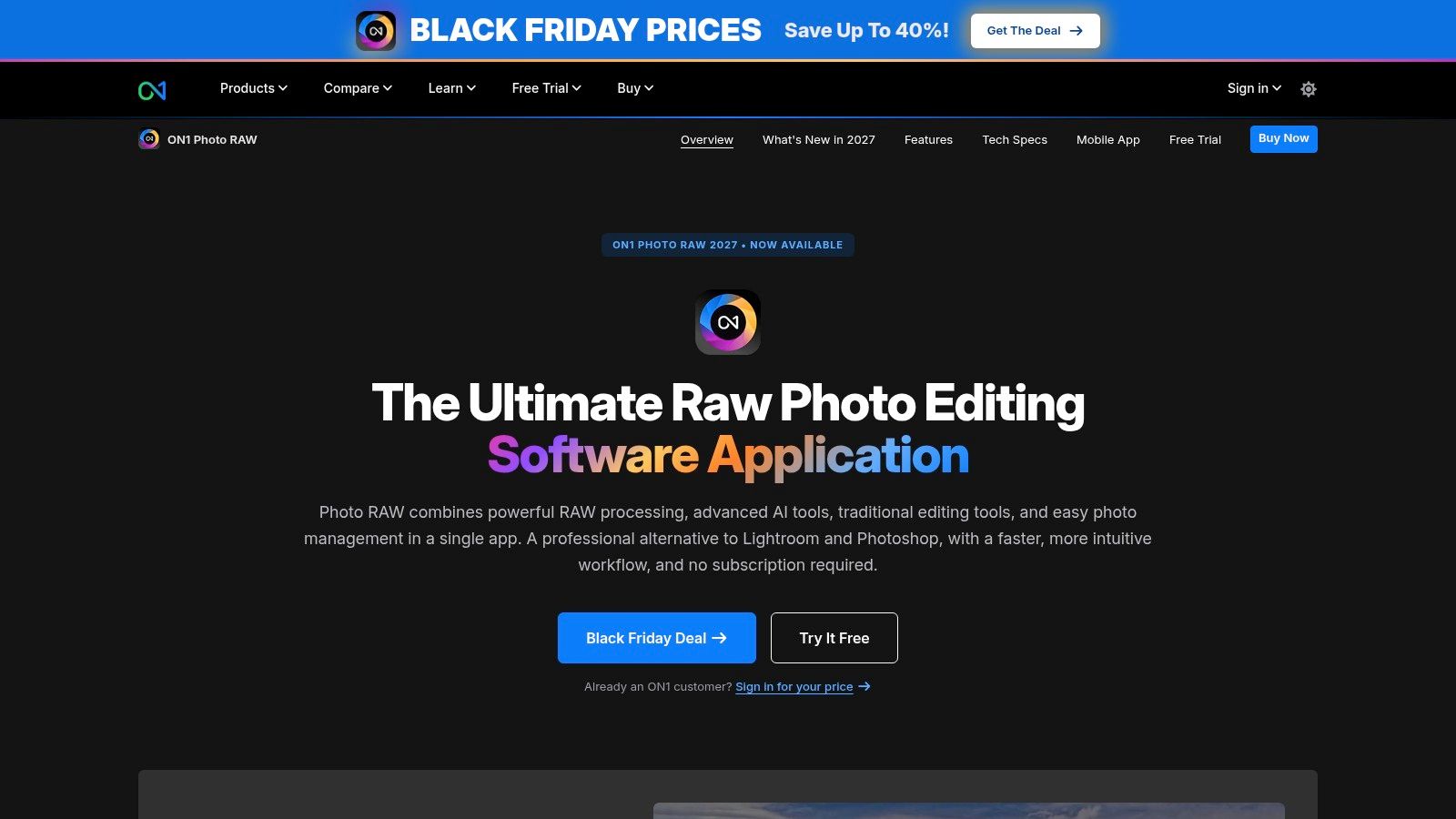
Some photographers want one app that handles the library, the RAW conversion, the layers, and the AI passes without handing files between programs. ON1 Photo RAW is that app. Browsing, developing, masking, and compositing all sit in one window, and the masking brushes are why many people stay.
The edition matters more than the brand here. The standard version covers organization, RAW editing, layers, and masking. The MAX editions add tools such as Restore AI, AI-assisted culling, and cloud-based generative features, so compare editions before checkout rather than after.
The task it fits
A large shoot from a photographer who dislikes subscriptions and wants one catalog. Cull, develop, mask, retouch, export.
The trade-offs
- AI features differ by edition: the name on the box doesn't tell you which tools you get.
- Desktop only: no browser or mobile workflow.
- More than casual users need: the feature surface is wide, and the learning curve reflects it.
A perpetual purchase option is the main attraction. Subscription pricing is available for photographers who want updates as they are released.
Website: on1.com/products/photo-raw
AI photo editing tools compared by task, pricing model, and access
| Tool | Best editing task | Pricing model | Platform access | Main limitation |
|---|---|---|---|---|
| Visual Sandbox | Generating and editing creative assets across multiple AI models | Pay per use; prepaid, non-expiring credits; no subscription | Web app, CLI, API, and MCP-compatible assistants | Costs vary by model, settings, and generation length |
| Adobe Photoshop | Precise retouching, compositing, and AI-assisted edits | Subscription with generative-credit limits | Desktop, web, and mobile depending on plan | Steeper learning curve than simpler editors |
| Adobe Lightroom | RAW development and consistent edits across photo collections | Subscription | Adobe photo workflow; can pair with Photoshop | Not as suited to complex compositing as Photoshop |
| Luminar Neo | Quick photography enhancements and visual transformations | License bundles and promotions; terms vary | Desktop; availability depends on plan | Less suited to intricate compositing |
| Photoroom | Product photos, background edits, and batch preparation | Plan-based with export limits and AI credits | App access; API/MCP on eligible plans | Less suited to general-purpose, layer-heavy editing |
| Canva | Editing photos for social posts and marketing designs | Plan-based; AI access and usage limits vary | Browser and mobile apps | Less fine control than a dedicated photo editor |
| Pixlr | Accessible web-first editing with AI tools | Multiple plan levels with different AI-credit allowances | Web, desktop, and mobile | Heavy AI use may require a higher tier |
| Picsart | Creative, stylized edits and social content | AI editing uses credits; plan details vary | Web and mobile apps | Less focused on RAW and high-volume product editing |
| DxO PhotoLab | RAW processing, noise reduction, and camera corrections | Perpetual-license option | Desktop | Not primarily a prompt-based generative editor |
| ON1 Photo RAW | Desktop RAW editing, organization, and layered workflows | Perpetual purchase or subscription | Desktop | AI features vary by edition |
Choosing by Task, Not by Hype
Start with the file, not the feature list.
- RAW files from a full shoot: Lightroom for volume and catalogs, DxO PhotoLab for noise and optical corrections, ON1 Photo RAW if you want one app and a perpetual option.
- Composites and retouching that must survive close inspection: Photoshop.
- Product catalogs at scale: Photoroom, with originals kept and edits exported as separate files.
- Social posts and marketing graphics: Canva, or Picsart when the style is the point.
- Quick browser work on a borrowed laptop: Pixlr.
- Model choice and visible per-run pricing: Visual Sandbox.
One recurring task is the right unit of purchase. If you clean up two hundred product photos a month, a cheap tool that handles backgrounds in one click beats a suite you open at 10% of its capability. If you shoot four weddings a year, the opposite is true.
Review every output before it goes commercial. We make no promise that an AI output is original, fit for a particular purpose, or free from third-party rights, and you should assume the same of any other provider's terms. For a shop, that means checking product color and label text against the item. For a newsroom, it means keeping the original file and a record of what changed.
One gap runs through nearly every tool here. Editing assumes you can see the canvas. Recent accessibility research on AI photo editing found that blind users wanted screen-reader-compatible labels, descriptions of color and visual effect that explain what changed, alternative controls for position-based editing, and the ability to revise an AI edit step by step, per this accessibility study. In a related prototype study, 12 of 13 participants valued object-based cropping, while researchers still named fine-grained spatial control as the weak point.
That reframes what "best" means. The editor that gives the most control and the clearest feedback often beats one with prettier output, because the person using it can finish the job unattended.
Match the tool to one recurring task you repeat. The most feature-rich option is rarely the one that pays for itself in the first month.
Visual Sandbox puts more than 91 third-party image, video, audio, vector, and 3D models behind a single pay-per-use balance, with the price shown before each run and credits that cost one cent each and never expire. You can work in the browser, from the CLI, or through an MCP connection in Claude, Cursor, or Codex, all against the same credits. Visit Visual Sandbox and run your next product shot or background swap on the model that fits it, without adding another subscription.